
Putting things on screen
Everything a plugin shows goes through api.ui, plus
the menu, context-menu and hotkey groups. There is no UI framework: a dialog or panel
hands you an empty element, and you fill it with plain DOM, using api.ui.widgets for
controls in the editor's own style.
| Surface | Call | Use it for |
|---|---|---|
| Status line, notices, questions | status, toast, confirm, alert, prompt |
A line of feedback, or a simple question. |
| Dialog | dialog(spec) |
A form or workspace that covers the map until closed. |
| Panel | panel(spec) |
Something kept open while the user works: floating, docked right, or in a strip under the map. |
| Status item, map button | statusItem(spec), mapButton(spec) |
Something that stays visible without a panel. |
| Preferences page | preferencesPage(spec) |
Your plugin's settings. |
| Dialog slot | dialogSlot(id, spec) |
A button or row in a built-in dialog's footer. |
| Map tool | mapTool(spec) |
Taking over the pointer on the map. |
| Overlay | overlay(spec) |
A drawing over the map the user switches on and off. |
| Picks | pickArea, pickTile, pickObject, pickFiles |
Asking the user to choose something. |
| File type | fileType(spec) |
Opening a kind of file the editor does not. |
| Map view | mapView(spec) |
Another way to look at a map, in the map's place. |
| Menus and keys | menu.add, contextMenu.add, hotkeys.add |
Reaching your plugin's commands. |
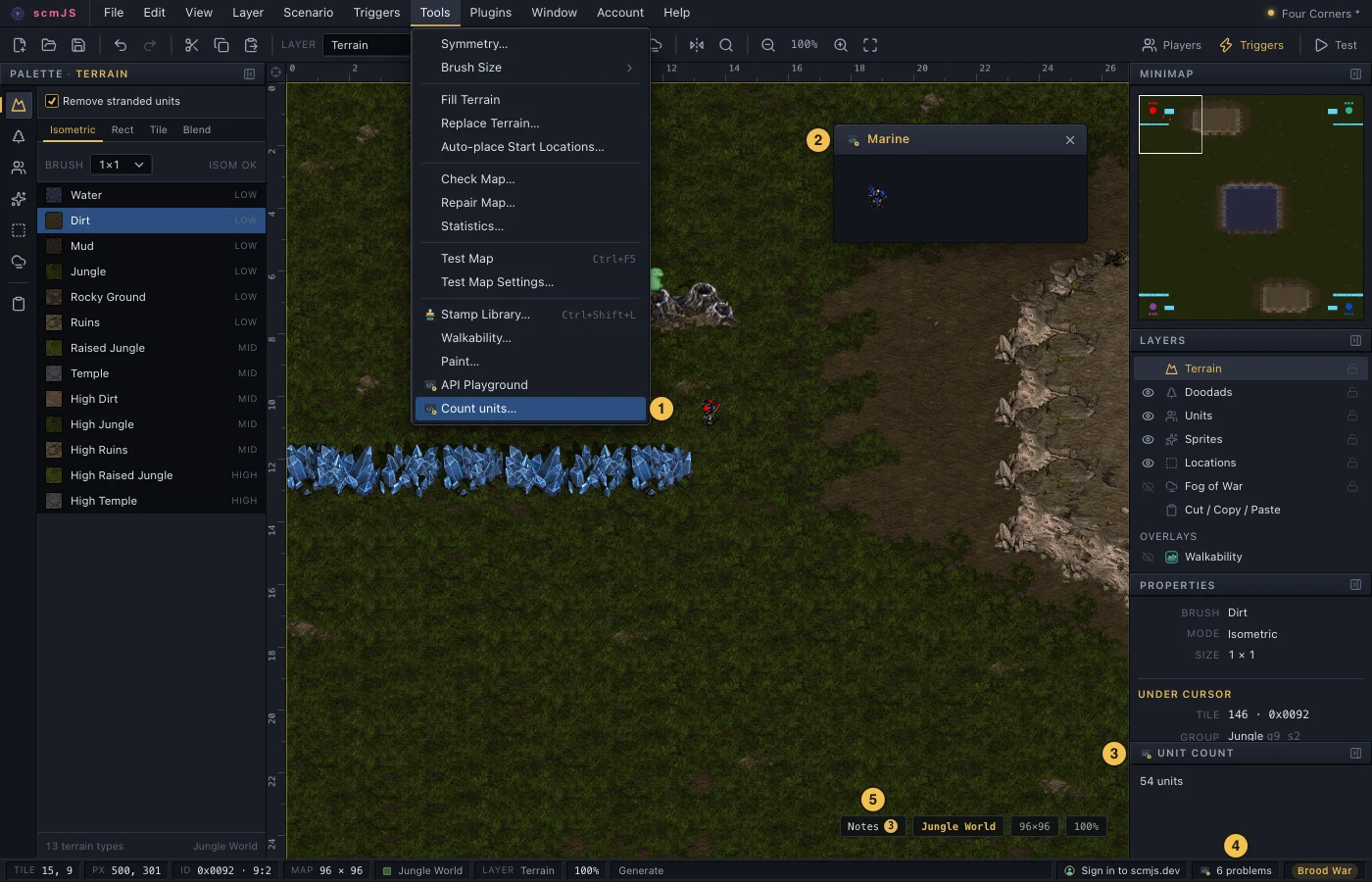
Where the main pieces appear: a menu item (1), a floating panel (2), a docked panel (3), a status bar cell (4) and a map button (5). The icon beside each is the plugin's own.
Messages and questions#
status(text)sets the status bar line, andstatusText()reads it back.toast({ kind, title, detail })shows a notice over the map that goes away by itself. It is how Save reports.confirm,alertandpromptask simple questions in the editor's style.confirmresolvesfalseandpromptresolvesnullwhen the user cancels.open(id, payload)opens one of the editor's own dialogs, such as"preferences"or"validateMap".ask(id)does the same for a dialog that answers ("newMap","saveAs","confirmClose") and resolvestruewhen the user went through with it.openDialogs()lists what is open now.
// File ▸ New's own dialog, then a word about what came of it.
if (await api.ui.ask("newMap")) api.ui.toast({ kind: "ok", title: "New map", detail: api.document.info()?.name });
else api.ui.status("No new map made.");
Building content#
api.ui.widgets builds controls that look like the editor's own, as plain DOM elements:
| Widget | What it is |
|---|---|
button, checkbox |
A button (with primary and busy), a labelled checkbox. |
text, number, select |
Input fields and a drop-down. |
segmented |
A few buttons of which one is on, for a short choice that should stay in view. |
tabs |
A row of tabs over a panel each. A tab is filled the first time it is shown and kept after. |
form |
A two-column grid of labelled fields. |
group, row, column, separator |
A titled box, and layout. |
hint |
Small dimmed explanatory text. |
list |
A list of rows with a label and hint, picked with a click. |
spinner, progressBar, skeleton, busy, statusLine, steps, fold |
Waiting and work in progress; see Showing that work is in progress. |
api.ui.el(tag, props, ...children) makes any other element. The WidgetsApi
reference has each widget's options.
Tooltips. api.ui.tooltip(element, content) puts the editor's own tooltip on an
element of yours. The content is a line of text, or a function that builds what to show
where the pointer is. A function is called again as the pointer moves, so a chart can say
what is under it; return null to show nothing at that spot. Leave out the element's
title, or the browser's tooltip shows as well. See the example in the
reference.
Dialogs#
A dialog is modal and covers the map. mount(body, handle) fills an empty element; the
rest of the spec is optional:
| Option | What it does |
|---|---|
size |
"sm", "md", "lg", "xl" or "full". |
tall |
A fixed height instead of the content's own, for a body that scrolls or fills. |
buttons |
The footer, left to right. Left out, a single Close; an empty list removes the footer. A button's run may return false to keep the dialog open. |
flush |
The body runs edge to edge, for content that draws its own frame. |
onPaste, onDrop |
Files and text pasted into the dialog or dropped on it. |
keepOpenOnEscape |
Keep the dialog open when Esc was meant for something inside it, such as a code editor's popup. |
slot |
Offer a slot of your own for other plugins to add to; see Dialog slots. |
The handle mount receives can close(), setTitle() and setBusy(label).
To pick something on the map from a dialog, close it, pick, and reopen it with the result, as Terrain from Image does. The dialog covers the map, so a pick cannot run while it is open.
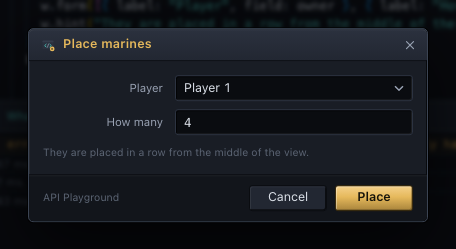
const w = api.ui.widgets;
const owner = w.select(Array.from({ length: 8 }, (_, slot) => ({ value: slot, label: api.names.player(slot) })));
const count = w.number({ value: 4, min: 1, max: 12 });

api.ui.dialog({
  title: "Place marines",
  size: "sm",
  mount: (body) => body.append(
    w.form([{ label: "Player", field: owner }, { label: "How many", field: count }]),
    w.hint("They are placed in a row from the middle of the view."),
  ),
  buttons: [
    { label: "Cancel" },
    {
      label: "Place",
      primary: true,
      run: () => {
        const view = api.view.visible();
        const t = api.consts.tile;
        const y = ((view.y0 + view.y1) / 2) * t;
        const x = ((view.x0 + view.x1) / 2) * t;
        api.document.edit("Place marines", (tx) => {
          for (let i = 0; i < Number(count.value); i++) tx.placeUnit(0, Number(owner.value), x + i * t, y);
        });
      },
    },
  ],
});
Panels#
A panel blocks nothing: the user keeps editing while one is open. Its mount works as a
dialog's does, and it closes with its × or handle.close().
| Option | What it does |
|---|---|
dock |
"float" (the default) over the map; "right" in the dock under the built-in panels, for anything kept open while working; "bottom" in a strip under the map, as wide as the map, for a timeline or a console. |
width |
Floating only, in CSS pixels; 260 by default. |
height |
Floating: a fixed height, so the body scrolls. Bottom dock: the strip's starting height, which the user then drags. |
resizable |
Floating only: a grip at the bottom-right corner. |
maximizable |
Floating only: a button in the title strip, or a double-click on it, makes the panel fill the map's area and puts it back. |
grow |
Docked right: take the dock's spare height. |
flush |
Floating only: the body runs edge to edge. |
onClose |
Called when the panel closes, whichever way. |
The handle has isOpen(), setTitle(), and maximize() / isMaximized() for a
maximizable panel. Step 2 of the tutorial and the problems
panel recipe are worked examples.
Status items and map buttons#
These are for things that should stay visible without a panel, like a background job or an unread count.
statusItem(spec)is a cell of your own in the status bar: a line of text beside your plugin's icon, a spinner whilebusy, a warning colour withwarn, and a click.mapButton(spec)is a button in the row at the map's bottom-right corner, with an optionalbadgeandactivestate. Use it sparingly; the row is small.
Keep the handle and call set(...) as things change. See the status item
example in the reference.
Preferences pages#
A plugin's settings belong on a page of its own in Edit ▸ Preferences, listed under Plugins, rather than behind a menu item. One page per plugin.
mount(body)fills the page. It runs the first time the page is shown, and the page stays mounted until the dialog closes.apply()is called on OK and Apply. Without it, write each setting toapi.storageas it changes.reset()is called by Reset to defaults while your page is the one showing.
api.ui.open("preferences", { page: "plugin:<your id>" }) opens the dialog on your page.
See the example in the reference.
Dialog slots#
A dialog slot adds a button or row to a built-in dialog's footer, or to another plugin's
dialog that offers one. Your mount receives the dialog's fields: the form as the user
sees it, not yet applied to the map. The slot can read a field and fill it in, and the
user still presses OK.
| Dialog id | Fields it lends |
|---|---|
mapProperties |
name, description |
triggerEditor, missionBriefing |
selected, modified |
stringEditor, playerSettings |
none |
trigedit.text (TrigEdit's Text Trigger Editor) |
text |
selected is the index of the selected trigger as text ("" for none), and setting it
selects a different row. modified is "1" while the dialog holds changes that have not
been applied. Closing the dialog from a slot discards those changes, so ask first when it
is set.
// A button in the Trigger Editor that shows the selected trigger as text.
api.ui.dialogSlot("triggerEditor", {
  mount(body, dlg) {
    body.append(api.ui.widgets.button("As text", { onClick: () => {
      const trigger = api.triggers.list()[Number(dlg.fields.selected.get())];
      if (trigger) void api.ui.alert(api.triggers.text.one(trigger), { title: "Trigger text" });
    } }));
  },
});
Map tools#
A map tool receives every press, move and release on the map before the active layer does,
and can draw a preview. Esc or a right-click stops it, and only one runs at a time. In
draw, view.x(px) and view.y(py) turn map pixels into canvas pixels, and
view.tilePx is the size of a tile on screen at the current zoom.
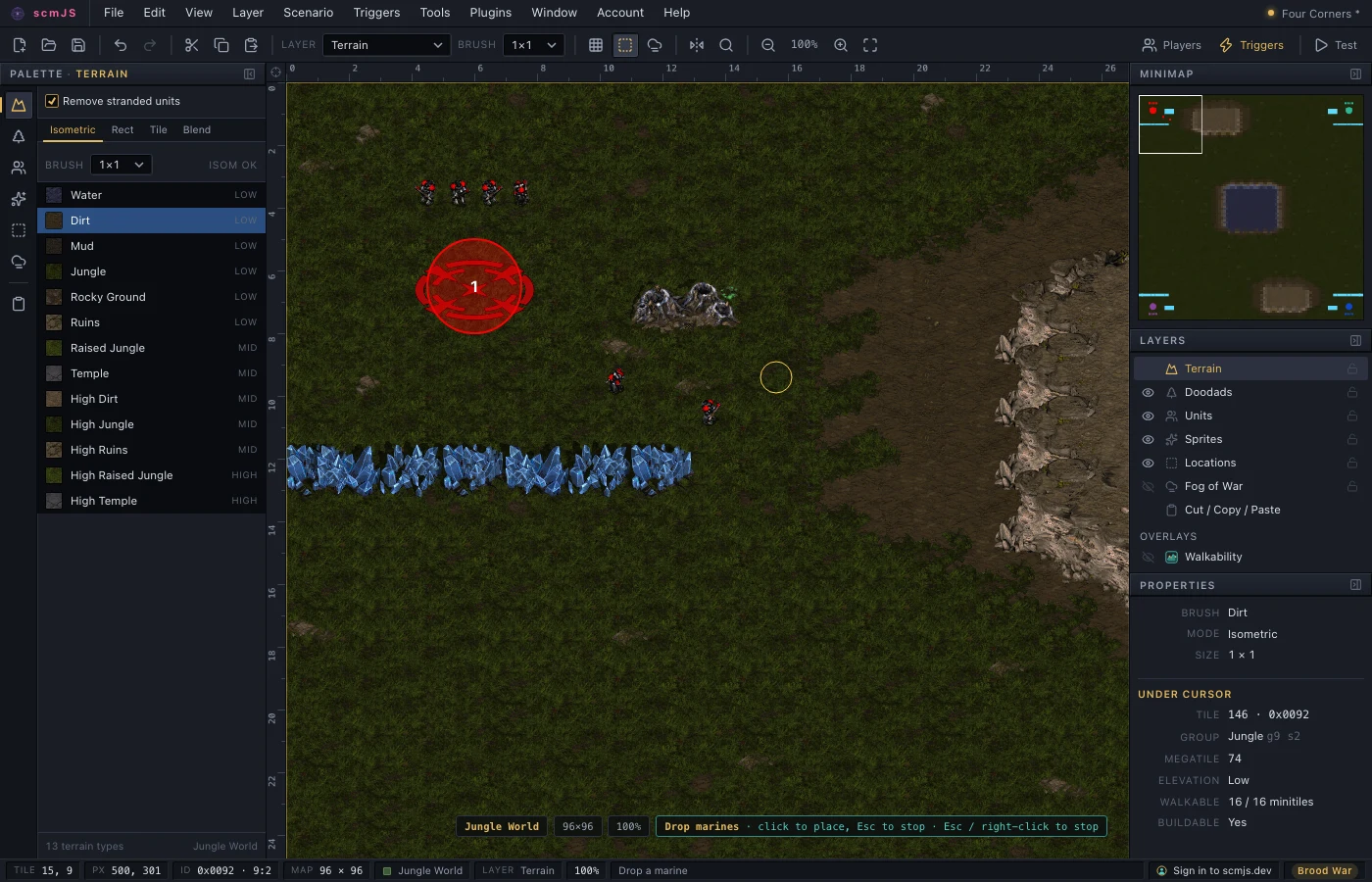
The picture shows the reference's example running. A brush of your own is a fuller one, and Paint is the plugin to read.
Overlays#
An overlay draws over the map while the user works on any layer, and never takes the
pointer. Each one is a tick in the View menu and a row in the Layers panel. above sets
where it draws: over the terrain (the default) or over the objects. Call redraw() on the
handle when what it shows changes.
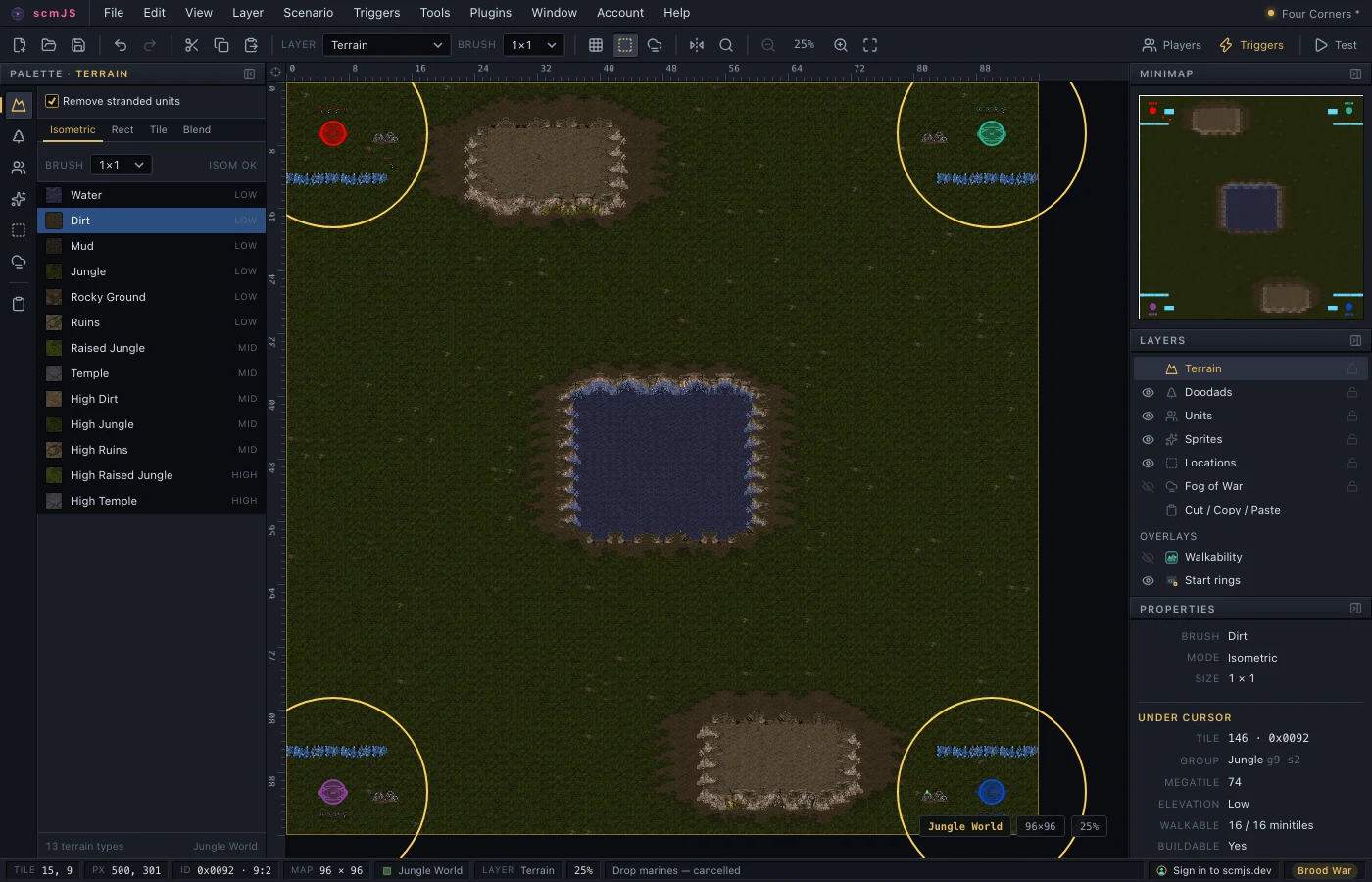
The picture shows the reference's example. A heat map of where the units are is a fuller one, and Walkability is the plugin to read.
Picking on the map#
pickArealets the user drag a rectangle and resolves with it in tiles.pickTileresolves with the tile clicked.pickObjectresolves with the unit or location clicked, outlining what is under the pointer as it moves.pickFilesopens the browser's file picker and resolves with the files, or an empty list.
The map picks resolve null on Esc or a right-click. Only one runs at a time, and a new
one cancels the previous.
File types#
fileType(spec) lets a plugin open a kind of file the editor doesn't. Once you claim an
extension, a file with it that is dropped on the editor or picked in File ▸ Open comes to
you instead of being read as a map. Several dropped together arrive in one call. The
editor's own .scm, .scx and .chk can't be claimed, and the first plugin to claim an
extension keeps it.
// Replays dropped on the editor, or picked in File ▸ Open, come here.
api.ui.fileType({
  name: "StarCraft replay",
  extensions: [".rep"],
  open: (files) => api.log(`${files.length} replays: ${files.map((f) => f.name).join(", ")}`),
});
Map views#
A map view shows something else where the map is drawn: a replay's game played out, or a picture of the map made another way. Aftermath's Replay view is one.
You choose which maps offer the view: offer(true, id) on the handle offers it on a map
(the one in front when the id is left out), and show(true) offers it and shows it. A map
that offers a view has a small switch in the top-left corner of its area, Map first and
then your view by its title, and each map stays on whichever the user left it on.
isShown() says whether the map in front shows your view now, and onChange hears when
that changes.
The editor gives the view one element for its whole life and never moves it, so an iframe inside isn't loaded again when the user switches back and forth.
// A view of its own for the maps this plugin opens.
const game = api.ui.mapView({
  title: "Game",
  mount(el) {
    const frame = document.createElement("iframe");
    frame.src = "https://example.com/viewer/";
    frame.style.cssText = "border: 0; width: 100%; height: 100%";
    el.append(frame);
  },
});
game.onChange((shown) => api.log(shown ? "the game is shown" : "the map is shown"));

// A map just opened is the one in front: offer the view there and show it.
if (await api.document.open(bytes, "replay.scx", { viewOnly: { label: "Replay" } })) game.show(true);
A view the user can move around should feel like the map itself. These hooks in the spec carry the editor's controls over to your view while it is shown:
| Hook | When it is called | What to do |
|---|---|---|
onShow(look) |
The user switched to your view. look is where the map was looking. |
Look at the same place, at the same scale as near as you can. |
onZoom(look) |
The user zoomed: View ▸ Zoom In or Out, a zoom level, Zoom to Fit, the toolbar or their keys. | Look at look, then report it with setCamera. |
minimap.draw(ctx, m) |
The minimap is drawn. The map's ground is already there. | Draw your own units in place of the map's. |
minimap.press(x, y) |
A press or drag on the minimap, at a map pixel. | Look there. |
onFog(on) |
View ▸ Fog of War or its button. | Turn your view's own fog on or off. |
onRepaint() |
Something paintOver draws changed: a View toggle, the grid, a location, another overlay. |
Draw over your view again. |
And these calls on the handle tell the editor about your view:
| Call | When to call it |
|---|---|
setCamera({ x, y, width, height }) |
Whenever the view moves, in map pixels. The minimap draws its box there, the toolbar shows the zoom, and switching back to Map opens the map on the same place. |
wheel(w) |
Your view got the mouse wheel itself, as an iframe does. The editor zooms by the user's own wheel rule and calls onZoom. |
redrawMinimap() |
Your minimap drawing changed. Cheap; call it as often as you like. |
setFog(on) |
Your view's fog changed; null greys the toggle. |
setPointer(at) |
The pointer moved over your view, for the status bar's tile and position; null when it leaves. |
paintOver(ctx, view) |
From your own drawing, to draw the grid, locations and other plugins' overlays onto a canvas over your view. |
Without onRepaint, the Grid, Locations and Location Names toggles are greyed while your
view is shown; without onFog, so is Fog of War. Everything else that belongs to the
hidden map, such as its layers, selection, clipboard and Find, is off while your view is
in front.
let units: { x: number; y: number; colour: string }[] = [];
const replay = api.ui.mapView({
  title: "Replay",
  mount: (el) => el.append(frame),
  onShow: (look) => viewer.lookAt(look.x, look.y, look.height),
  onZoom: (look) => viewer.lookAt(look.x, look.y, look.height),
  minimap: {
    draw(ctx, m) {
      for (const u of units) { ctx.fillStyle = u.colour; ctx.fillRect(m.x(u.x) - 1, m.y(u.y) - 1, 2, 2); }
    },
    press: (x, y) => viewer.lookAt(x, y),
  },
});
viewer.onMove((c) => replay.setCamera({ x: c.x, y: c.y, width: c.width, height: c.height }));
viewer.onWheel((w) => replay.wheel({ deltaY: w.deltaY, ctrlKey: w.ctrlKey, x: w.mapX, y: w.mapY }));
viewer.onUnits((list) => { units = list; replay.redrawMinimap(); });
// The grid, locations and other overlays over the game, its fog on the editor's toggle, the pointer in the status bar.
const replay = api.ui.mapView({
  title: "Replay",
  mount: (el) => el.append(frame, canvas),
  onRepaint: () => drawOver(),
  onFog: (on) => viewer.fog(on),
});
function drawOver() {
  const ctx = canvas.getContext("2d")!;
  ctx.clearRect(0, 0, canvas.width, canvas.height);
  replay.paintOver(ctx, viewer.mapView());
  drawMyMarks(ctx);
}
viewer.onFogChange((on) => replay.setFog(on));
viewer.onPointer((at) => replay.setPointer(at));
Showing that work is in progress#
A dialog that does not change while it works looks broken. ui.widgets has one set of
tools for this, so plugins look alike:
| Widget | When to use it |
|---|---|
spinner |
Waiting for something of unknown length. |
progressBar |
Work whose length is known, such as a download. |
skeleton |
A grey placeholder in the shape of a list or picture that is coming. |
busy(target) |
Cover a box while its contents are replaced. |
button(label, { busy }) |
Disable a button while the work it started runs. |
statusLine |
One line at the bottom of a dialog for progress, the result, errors and a Cancel. |
steps, fold |
Work in stages, and a block folded to one summary line. |
A search dialog that uses four of them. The wait stands in for a request to a server:
const w = api.ui.widgets;

function wait(ms: number, signal: AbortSignal) {
  return new Promise<void>((resolve, reject) => {
    const timer = setTimeout(resolve, ms);
    signal.addEventListener("abort", () => { clearTimeout(timer); reject(new Error("stopped")); });
  });
}

api.ui.dialog({
  title: "Find units",
  mount(body) {
    const query = w.text({ placeholder: "marine" });
    const results = api.ui.el("div", { style: { minHeight: "120px" } });
    const status = w.statusLine({ text: "Type part of a unit's name." });
    const search = w.button("Search", { primary: true, onClick: () => void run() });
    body.append(w.row(query, search), results, status);

    async function run() {
      const stop = new AbortController();
      const cover = w.busy(results, "Searching…");
      status.busy("Searching…");
      status.cancel(() => stop.abort(), "Stop");
      search.setBusy(true);
      try {
        await wait(1500, stop.signal); // your fetch goes here, with { signal: stop.signal }
        const found = api.query.find({ kind: "units", query: query.value });
        results.replaceChildren(w.list(found.map((f) => ({ label: f.label, hint: f.detail, value: f.index }))));
        status.set(`${found.length} found.`, "ok");
      } catch (error) {
        status.set(stop.signal.aborted ? "Stopped." : String(error), stop.signal.aborted ? "warn" : "error");
      } finally {
        cover.done();
        search.setBusy(false);
        status.cancel(null);
      }
    }
  },
});
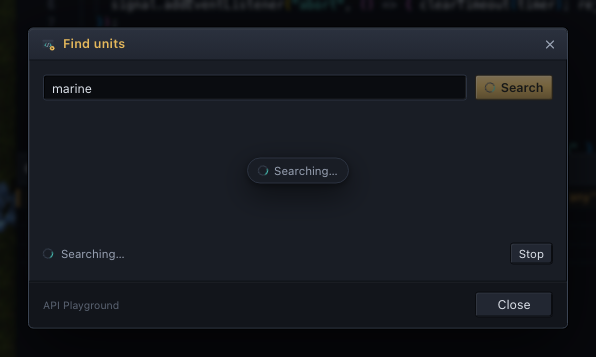
Work started from a dialog belongs on that dialog's status line. ui.progress is for work
that runs while the user carries on editing the map.
Menus, context menus and hotkeys#
api.menu.add(path, item) adds a menu item.
pathis a menu ("Tools") or a submenu ("File/Import"), always in English.- A path that names no existing submenu creates one for your plugin (
"Tools/My Plugin"), and one that names no menu creates a top-level menu before Help ("Account"). - The item's
labelis English too: labels are how items find each other, whatever language the menu shows. The editor translates it through your catalogues (see Translating). - Items go at the end of the menu unless
afternames an item to follow, by its English label. icon: "plugin"marks the item with your plugin's icon, andenabledgreys it out.
api.contextMenu.add(surface, item) adds to a right-click menu. The surfaces are
"viewport" (the map) and "terrainPalette". The item's functions receive what was under
the pointer. A fixed label is English and translated like a menu label; a function label
is called when the menu opens, so translate it there with api.i18n.t.
api.hotkeys.add(combo, run) adds a key such as "Ctrl+Shift+I". Plugin hotkeys are
tried before the editor's own, and never while the user is typing in a field or a dialog
is open.
All three accept a command id instead of run; see api.commands.
// Right-click the map: copy the position of the tile under the pointer.
api.contextMenu.add("viewport", {
  label: (ctx) => (ctx.tile ? `Copy position (${ctx.tile.x}, ${ctx.tile.y})` : "Copy position"),
  enabled: (ctx) => ctx.tile !== null,
  run: (ctx) => { if (ctx.tile) void navigator.clipboard.writeText(`${ctx.tile.x}, ${ctx.tile.y}`); },
});