
Your first plugin
This part builds one small plugin from nothing to a published repository. The plugin is Base Check: it counts the mineral fields and geysers near each start location, lists them in a panel, and can set every short mineral field back to the full amount. It is about sixty lines, and it uses the parts of the API most plugins use: reading the map, a panel, an edit with undo, events, storage, a menu item and a hotkey.
You need nothing installed. The first three steps run in the editor's API Playground; the files come in step 4.
Before you start#
- Open the editor and a melee map, or make a map with File ▸ New and a few start locations and mineral fields, so the plugin has something to count.
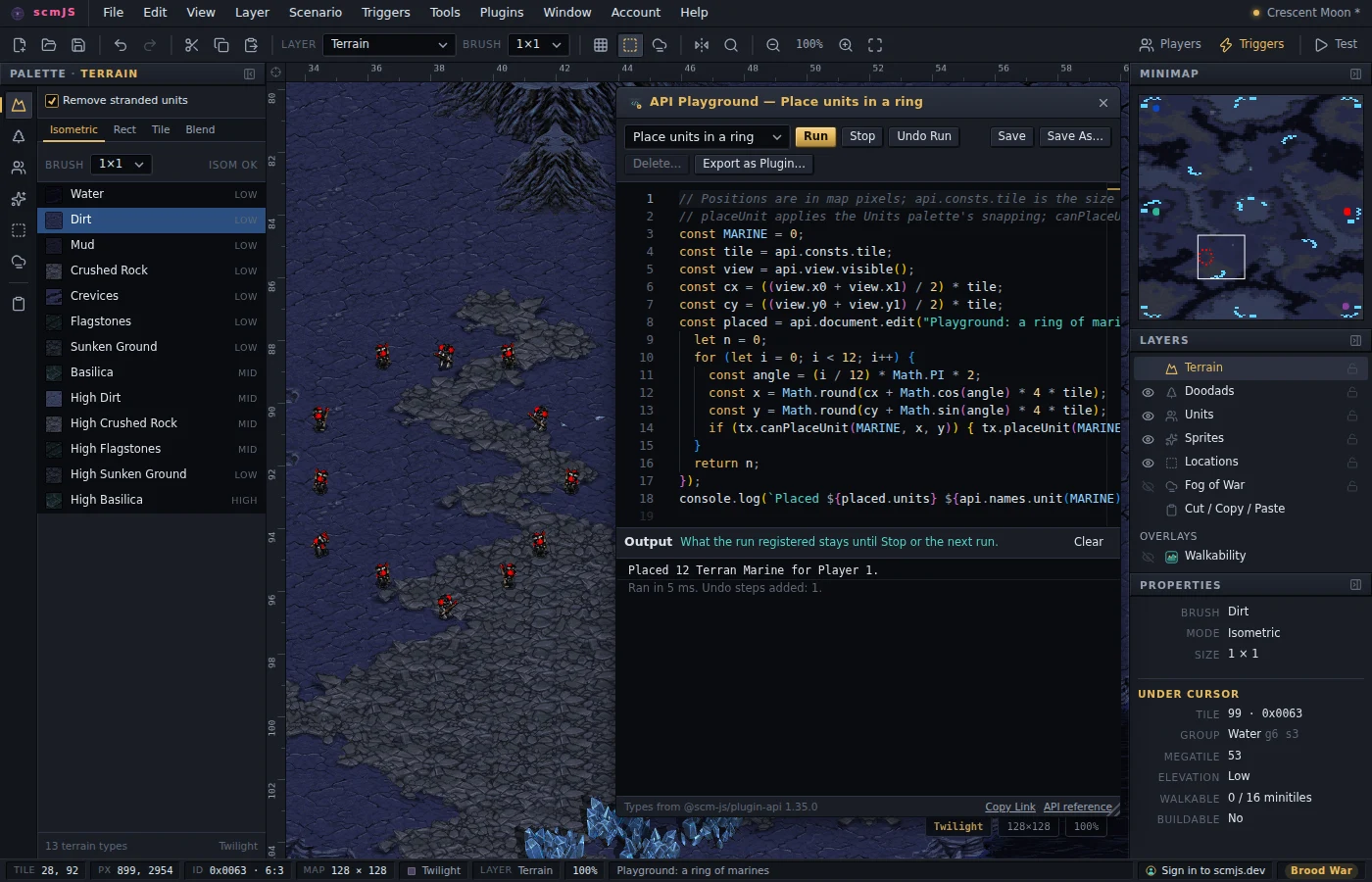
- Install the API Playground from Plugins ▸ Browse Plugins…, and open Tools ▸ API Playground.
The playground is a code editor in which api is already defined. Ctrl+Enter runs what
you wrote against the open map. On the documentation site each step below has a Try
it link that opens the editor with the code already in the playground.
Trying the API first describes the playground in full.
Step 1: read the map#
Reading needs no setup. api.document.scenario() is the open map, api.query answers
questions about it, and api.consts has the numbers the map file uses, so the code
does not hard-code that a vespene geyser is unit 188.
const { tile, unit } = api.consts;
const radius = 12 * tile; // unit positions are in pixels; a tile is 32 of them

function census() {
  const units = api.document.scenario()?.units ?? [];
  return api.query.startLocations().map((start) => {
    const near = units.filter((u) => Math.hypot(u.x - start.x, u.y - start.y) <= radius);
    return {
      start,
      minerals: near.filter((u) => api.consts.isResource(u.unitId) && u.unitId !== unit.vespeneGeyser).length,
      geysers: near.filter((u) => u.unitId === unit.vespeneGeyser).length,
    };
  });
}

for (const row of census()) {
  api.log(api.names.player(row.start.owner), `${row.minerals} mineral fields, ${row.geysers} geysers`);
}
Run it and the playground's output lists one line per start location. Two things to notice:
- Nothing throws without a map.
scenario()answersnullandstartLocations()an empty list, so the code above prints nothing instead of failing. - Players count from 0.
start.owner0 is Player 1, as in the map file.api.names.playerturns the slot into the name the editor shows.
Step 2: show it in a panel#
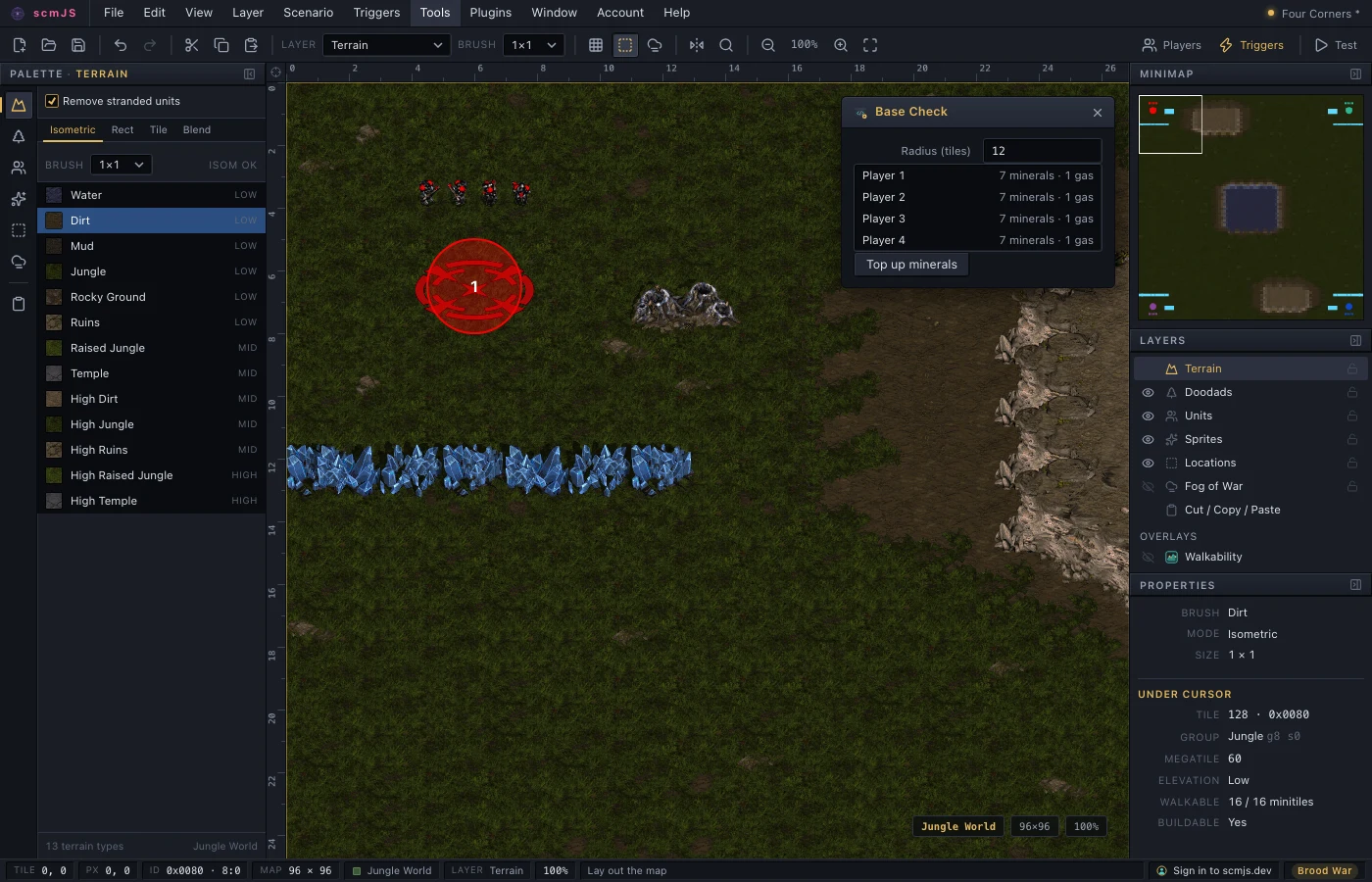
A panel floats over the map without blocking it. Its mount function receives an empty
element to fill, and api.ui.widgets builds lists, buttons and fields that look like the
editor's own. The list is rebuilt whenever the units change, and clicking a row takes
the view to that start location.
const { tile, unit } = api.consts;
const radius = 12 * tile;

function census() {
  const units = api.document.scenario()?.units ?? [];
  return api.query.startLocations().map((start) => {
    const near = units.filter((u) => Math.hypot(u.x - start.x, u.y - start.y) <= radius);
    return {
      start,
      minerals: near.filter((u) => api.consts.isResource(u.unitId) && u.unitId !== unit.vespeneGeyser).length,
      geysers: near.filter((u) => u.unitId === unit.vespeneGeyser).length,
    };
  });
}

api.ui.panel({
  title: "Base Check",
  width: 280,
  mount(body) {
    const show = () => {
      const items = census().map((row) => ({
        label: api.names.player(row.start.owner),
        hint: `${row.minerals} minerals · ${row.geysers} gas`,
        value: row.start,
      }));
      body.replaceChildren(
        items.length > 0
          ? api.ui.widgets.list(items, { onPick: (start) => api.view.goTo({ kind: "unit", index: start.index }) })
          : api.ui.widgets.hint("This map has no start locations."),
      );
    };
    show();
    const subscriptions = [api.events.on("units", show), api.events.on("document", show)];
    return () => subscriptions.forEach((s) => s.dispose());
  },
});
Place or delete a mineral field while the panel is open and the count follows. The
function mount returns is its cleanup: it runs when the panel closes, and here it stops
the two listeners. The "document" event covers opening another map or switching tabs.
Step 3: change the map#
Every change to terrain or objects goes through api.document.edit. It takes the label
Edit ▸ Undo will show and a function, and everything the function does becomes one undo
entry. Here the edit sets every mineral field holding less than the standard 1500 back
to 1500, and flashes the ones it changed.
const { unit } = api.consts;
const units = api.document.scenario()?.units ?? [];
const short = units.flatMap((u, index) =>
  api.consts.isResource(u.unitId) && u.unitId !== unit.vespeneGeyser && u.resourceAmount < unit.defaultMinerals ? [index] : [],
);

const result = api.document.edit("Top up minerals", (tx) =>
  tx.updateUnits(short, () => ({ resourceAmount: unit.defaultMinerals })),
);
if (result.changed) api.view.flash({ units: short });
api.ui.status(`${result.units} mineral fields topped up`);
Press Ctrl+Z in the editor and the amounts go back. You did not mark anything as modified, repaint the map or write the undo record: the transaction does all three.
The function you pass must not be async. Fetch, load and ask the user before the call,
then write in one go. Asynchronous calls
has the reason.
Step 4: make it a plugin#
A plugin is two files in a folder: plugin.json, which describes it, and plugin.ts,
which exports a function the editor calls with api.
In the playground, Export as Plugin… saves a zip with both files and the typings and build setup already in place. Or make the folder by hand:
plugin.json:
{
  "name": "Base Check",
  "version": "1.0.0",
  "description": "Counts the resources at each start location and tops up short mineral fields.",
  "entry": "plugin.ts",
  "icon": "⛏️",
  "api": 1
}
plugin.ts is the three snippets above put together, with the setting for the radius
kept in api.storage, a menu item and a hotkey:
import type { PluginApi } from "@scm-js/plugin-api";

export default function activate(api: PluginApi) {
  const { tile, unit } = api.consts;
  const w = api.ui.widgets;
  let radius = api.storage.get("radius", 12); // in tiles
  let panel: ReturnType<typeof api.ui.panel> | null = null;

  const isMineral = (id: number) => api.consts.isResource(id) && id !== unit.vespeneGeyser;

  function census() {
    const units = api.document.scenario()?.units ?? [];
    return api.query.startLocations().map((start) => {
      const near = units.filter((u) => Math.hypot(u.x - start.x, u.y - start.y) <= radius * tile);
      return {
        start,
        minerals: near.filter((u) => isMineral(u.unitId)).length,
        geysers: near.filter((u) => u.unitId === unit.vespeneGeyser).length,
      };
    });
  }

  function topUp() {
    const units = api.document.scenario()?.units ?? [];
    const short = units.flatMap((u, index) => (isMineral(u.unitId) && u.resourceAmount < unit.defaultMinerals ? [index] : []));
    const result = api.document.edit("Top up minerals", (tx) =>
      tx.updateUnits(short, () => ({ resourceAmount: unit.defaultMinerals })),
    );
    if (result.changed) api.view.flash({ units: short });
    api.ui.status(`${result.units} mineral fields topped up`);
  }

  function open() {
    if (panel?.isOpen()) return;
    panel = api.ui.panel({
      title: "Base Check",
      width: 280,
      mount(body) {
        const rows = api.ui.el("div");
        const show = () => {
          const items = census().map((row) => ({
            label: api.names.player(row.start.owner),
            hint: `${row.minerals} minerals · ${row.geysers} gas`,
            value: row.start,
          }));
          rows.replaceChildren(
            items.length > 0
              ? w.list(items, { onPick: (start) => api.view.goTo({ kind: "unit", index: start.index }) })
              : w.hint("This map has no start locations."),
          );
        };
        const field = w.number({
          value: radius,
          min: 4,
          max: 40,
          onChange: (value) => {
            radius = value;
            api.storage.set("radius", value);
            show();
          },
        });
        body.append(w.form([{ label: "Radius (tiles)", field }]), rows, w.button("Top up minerals", { onClick: topUp }));
        show();
        const subscriptions = [api.events.on("units", show), api.events.on("document", show)];
        return () => subscriptions.forEach((s) => s.dispose());
      },
    });
  }

  api.commands.register({ id: "base-check.open", title: "Base Check", run: open });
  api.menu.add("Tools", { label: "Base Check…", command: "base-check.open", enabled: () => api.document.isOpen() });
  api.hotkeys.add("Ctrl+Alt+B", { command: "base-check.open" });
}
What changed from the snippets:
activate(api)wraps everything. The editor calls it once when the plugin is turned on. Theimport typeline is only for your code editor and the type-check; it is removed before the file runs.- Nothing is cleaned up by hand. The menu item, hotkey, command and panel are removed
when the user turns the plugin off. Only the two listeners inside
mountare disposed explicitly, because they should stop when the panel closes, not when the plugin does. - The command is registered once and used twice. The menu item and the hotkey both
name it, and another plugin can run it with
api.commands.run("base-check.open"). An id with a dot in it is used exactly as written; one without is prefixed with the plugin's id.
The playground runs a whole plugin.ts too: paste it in and activate is called, so you
can keep working there until the plugin is ready for its own folder.
Step 5: load it from your machine#
Serve the folder, with cross-origin requests allowed so the editor can fetch from it:
npx serve --cors .
In the editor open Plugins ▸ Manage Plugins…, paste http://localhost:3000/ and
confirm. Tools ▸ Base Check… is now in the menu. After each change to the files, press
Reload on the plugin's row.
For completion and type-checking in your own code editor, install the typings in the folder:
npm i -D @scm-js/plugin-api
If the plugin fails to load, the editor raises a notice and the plugin's row in Manage
Plugins shows the error. View ▸ Debug Console has every api.log line, the edits the
plugin made and any listener that threw. When something goes wrong
lists the usual mistakes.
Step 6: publish it#
- Put the folder in a public GitHub repository.
- Tag a release (
git tag v1.0.0 && git push --tags). Tags are what the update check offers to people who already have the plugin. - Anyone can now install it by pasting
github:you/your-repositoryinto Manage Plugins.
To have it appear in Browse Plugins as well, see Getting listed.
Where to go next#
- Writing a plugin covers each piece in more detail: the manifest, the icon, bundling npm dependencies, testing, CI, and what your users see when they install.
- Recipes has complete snippets for common jobs.
- The API, group by group has an example for every part of the API.
- Plugins to read lists the project's own plugins by what each one is a good example of. Hello World is the smallest, with the build and CI already set up.