
Using plugins
This part is for map makers: which plugins there are, how to install and update them, and what you are trusting when you do.
What is available#
Nine plugins are installed and on from the start, and one more is installed but off. The rest are in Plugins ▸ Browse Plugins…. The user guide describes each in more detail, and each repository has its own README.
| Plugin | Starts | Where it appears | What it does |
|---|---|---|---|
| Walkability | on | View ▸ Walkability | Shows the ground as units walk it: islands, chokes and their widths, distances between starts. |
| Paint | on | Tools ▸ Paint… | Freehand, lines, shapes, spray and text with whatever the active layer's palette has picked. |
| Repair | on | on open, Tools ▸ Repair Map… | Finds what is missing, damaged or the wrong size in a map file, and repairs it. |
| Terrain from Image | on | File ▸ Import ▸ Terrain from Image… | Turns a picture into terrain with the isometric brush. |
| TrigScript | on | Triggers ▸ TrigScript… | Triggers written as TypeScript, kept inside the map. |
| Stamp Library | on | Tools ▸ Stamp Library… | Saved pieces of map (a ramp, a mineral line) to lay down again on any map. |
| scmscx.com | on | File ▸ Find on scmscx.com… | Searches the scmscx.com map archive and opens the map you pick. |
| scmjs.dev | on | Account menu | Your scmjs.dev account: stored maps, share links, editing a map together. |
| eudplib | on | (none of its own) | A library other plugins build EUD maps with. TrigScript and Magenta use it. |
| TrigEdit | off | Triggers ▸ Text Trigger Editor… | The text trigger format, for triggers carried over from SCMDraft. |
| Melee Wizard | Browse | Tools ▸ Melee Wizard… | Symmetric start locations, mineral lines and geysers. |
| Section Explorer | Browse | Tools ▸ Section Explorer… | The map file's sections in a hex editor, with what each byte means. |
| Magenta | Browse | Triggers ▸ Magenta… | A trigger editor where each trigger reads as a sentence, with Remastered EUD conditions and actions. |
| Trigger Map | Browse | Triggers ▸ Trigger Map… | The triggers as a graph: what each one waits for and what it changes, and what does not fit together. |
| Timelapse | Browse | View ▸ Timelapse… | Records the map as you build it and exports the recording as a GIF or video. |
| Aftermath | Browse | File ▸ Open Replay… | Plays a replay back over its map: heat maps, build orders, APM. |
| Hello World | Browse | Tools ▸ Hello World… | An example plugin to copy when writing your own. |
| API Playground | Browse | Tools ▸ API Playground | A code editor with the plugin API in scope. Runs a few lines against the open map, and exports them as a new plugin. |
The installed ones are defaults: they are built into the editor, so a fresh install has them without going to the network. A default can be turned off but not removed.
Installing one#
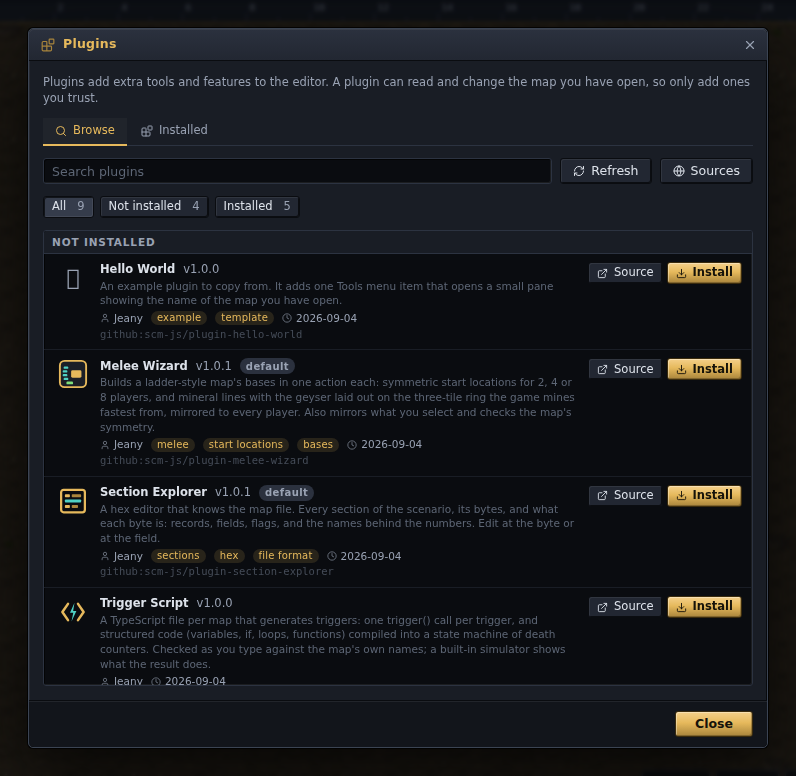
- From the list. Plugins ▸ Browse Plugins…, then Install on a row.
- From an address. Plugins ▸ Manage Plugins…, then paste the address.
- From a link. A link to the editor ending in
?plugin=github:scm-js/<repository>offers that plugin when the editor opens: the same confirmation as Browse Plugins if it is not installed, or a notice with Turn It On if it is installed but off. The documentation's Try it links use this to offer the API Playground. Only the project's own repositories can be named this way.
In every case the editor shows where the code comes from and asks before it adds anything. An address can take any of these forms:
| Address | What it points at |
|---|---|
github:owner/repo |
A GitHub repository, at its default branch. |
github:owner/repo@v1.2 |
A tag, branch or commit of it. |
github:owner/repo@v1.2/plugins/mine |
A folder inside a repository, for several plugins in one. |
https://github.com/owner/repo/tree/v1.2/plugins/mine |
The same, copied from the browser's address bar. |
https://…/plugin.json |
A plugin's manifest anywhere: GitLab, a gist, your own server. |
https://…/plugin.ts |
A single plugin file with no manifest. |
http://localhost:3000/ |
A folder holding plugin.json on your own machine, while you write a plugin. |
What you are trusting#
There is no sandbox. A plugin has the same access as the editor: it can read and change the open map, read and write the files in the map archive and the editor's browser storage, and make network requests. It is the same trust a browser extension asks for, so only add plugins you trust.
Before any code is fetched, the Add screen shows what the plugin says about itself (name,
version, author, description and icon from its plugin.json), links to its repository,
and the addresses the code will come from. Nothing has run yet, so this is the moment to
look at the repository. The screen has three options:
| Option | Default | What it does |
|---|---|---|
| Enable it now | on | Start the plugin as soon as it is added. |
| Pin to this version | on | Store the exact commit the address points at today, so the plugin never changes under you. |
| Load from a copy saved here | off | Keep a copy of the plugin's files in this browser and load from that until you press Reload. |
A plugin that needs another one (see Requiring another plugin) lists it under Also installs.
Keeping a plugin up to date#
A pinned plugin never changes by itself; a push to its repository reaches nobody who has it installed. To move forward:
- Check for update on a row in Manage Plugins asks the repository for its newest release. If it is newer, the button becomes Update to …, which shows the new manifest and asks before changing anything. Check all for updates does every row.
- Only releases (version tags) count. Commits pushed after the newest release are not offered.
- Browse Plugins also marks v… available on a row when its list carries a newer version than the one you run.
Preferences ▸ Plugins ▸ Plugin updates decides whether the editor looks for you. It reads the plugin list at most once every six hours, one request however many plugins you have.
| Choice | What happens |
|---|---|
| Tell me (default) | A notice names what is newer, with a button to Manage Plugins. |
| Do nothing | Nothing is checked until you press a row's button. |
| Install them | Newer versions of the plugins you added yourself are installed. Defaults, plugins loading from a saved copy, plugins that are off, and versions that need a newer editor are only named in the notice. |
Defaults move with the editor: each release carries the versions it was tested with, and a built-in default is never checked until you press its button. Updating one makes it an ordinary plugin fetched from its repository at each start; Revert on the row goes back to the version the editor ships.
The other buttons on a row:
- Reload fetches the plugin again and replaces any saved copy. For a pinned plugin that is the same commit, so it is mostly for plugins you are writing.
- Turning a plugin off removes everything it added: menu items, hotkeys, dialogs, panels, overlays and listeners.
- Remove also takes it off the list. Defaults cannot be removed.
A plugin that fails to load raises a notice with a button to Manage Plugins, where its row shows the error.
Where a plugin keeps its data#
- In the browser. A plugin's settings appear in Preferences ▸ Storage as one row under its id, with a button to clear them. Clear all data removes them too.
- In the map. A plugin can keep files inside the map archive, so they travel with the map. TrigScript keeps its scripts this way. The Save dialog lists these files and can leave them out.
Sources#
Browse Plugins reads registries: JSON files listing plugins and the address each installs
from. The project's own is scm-js/registry, and the
Sources button adds others. A registry only decides what is offered; installing from
it goes through the same Add screen and pinning as a pasted address.
Plugins you have that no registry lists (one you added by address, or one a list dropped) are shown under Already installed, marked not listed.