
Your scmjs.dev account
scmjs.dev is the project's own service. An account there does three things for the editor: it keeps maps for you, with a history of revisions and links that give anyone a copy, it lets you share the map you have open so others can edit it with you at the same time (Editing a map together), and it pays for the AI features in the next section. None of it is required. The editor works completely without an account, and it sends nothing to scmjs.dev until you use one of these features — there is no request at startup unless you are already signed in, and then only to show your balance.
All of it lives in the scmjs.dev plugin, which is installed and on from the start. If you would rather not see the Account menu at all, turn the plugin off in Plugins ▸ Manage Plugins….
Signing in#
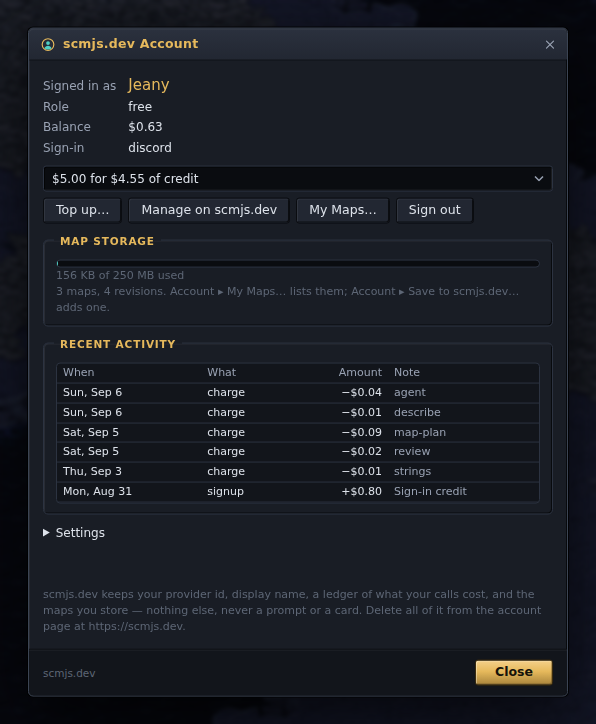
The Account menu and the cell at the right end of the status bar are the two ways in; either opens the Account dialog. Sign in with Discord: the provider's own page opens in a small window, you approve it there, and the window closes itself. The editor never sees a password, only a display name and an id from the provider.
Signed in, the dialog shows your name, your balance, the sign-in you used, how much of your map storage is in use, and a list of recent activity — every AI request with what it cost, and every credit. The buttons top up the balance, open your account page on scmjs.dev (to link another sign-in, or delete the account and everything with it), open My Maps, and sign out. Under Settings are two ticks: Use the AI features, which takes the whole of Tools ▸ AI away when off and leaves the account and the maps, and the status-bar cell.
What scmjs.dev keeps is short: the id and display name from your sign-in, a ledger of what your requests cost, and the maps you store there. It keeps no prompts and no card details — payment happens on the payment provider's page. The account page deletes all of it.
Keeping maps on scmjs.dev#
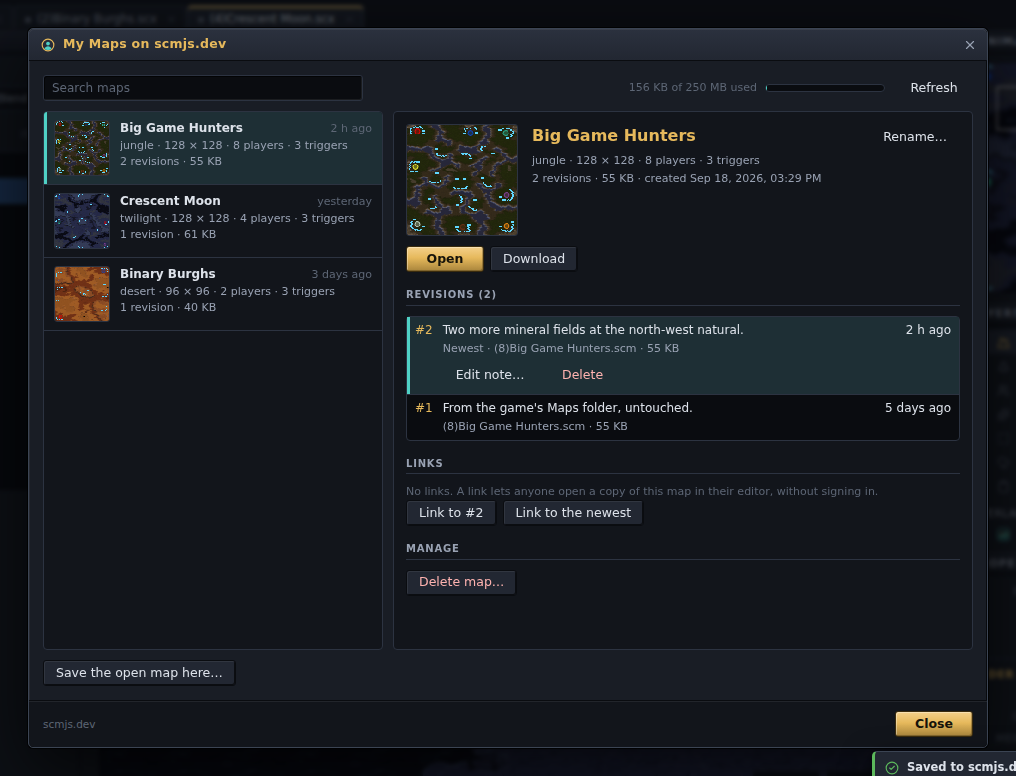
Account ▸ My Maps… — also File ▸ Open from scmjs.dev… — lists the maps on your account, newest change first, each with a picture, its tileset, size and player count, and how many revisions it has. The box above the list searches the names, tilesets, file names and notes. The map you last opened or saved from here is picked when the list arrives, and its revisions appear on the right: the number, the note you wrote, the file name, the size and when it was saved. Up and Down move through the list, and Enter opens the map. Open puts the picked revision in the editor, asking first if the map you have open has unsaved changes; Download saves the file to disk as it was uploaded; the note can be added or edited later and the map renamed. A revision can be deleted, except the last one — delete the map to remove it.
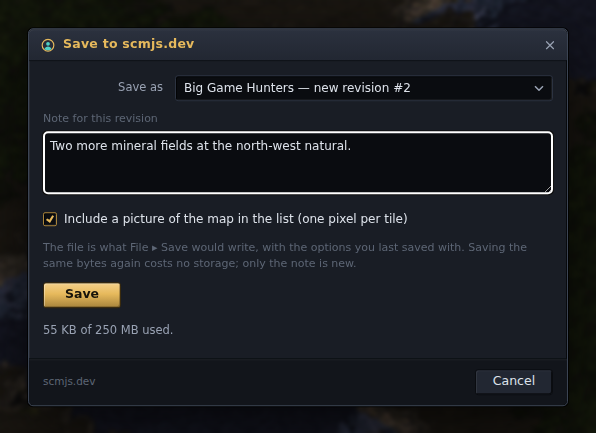
Account ▸ Save to scmjs.dev… — also under File, beside Save Copy As — saves the open map to the account, as a new map or as the next revision of one you pick; the map it was opened from or last saved to is picked for you. Write a note saying what changed, and tick whether to include a one-pixel-per-tile picture for the list. The file is what File ▸ Save would write, with the save options you last confirmed, so what comes back is playable. It is a copy: Ctrl+S goes on writing to the file on your disk, and nothing on the account changes until you save there again.
Revisions are numbered in order and a number is never reused. Saving a file whose bytes are already on the account costs no storage — only the new note is kept — so saving a note on its own is free. Storage is 250 MB per account on scmjs.dev, shown as a bar in both dialogs. Maps live on a signed-in account only; the free AI trial cannot store them.
Giving someone a copy#
A link can hand a map to anyone: whoever opens it gets a copy of the map in their own editor, without signing in. The copy is theirs — it opens as a new file, File ▸ Save asks where to keep it, and nothing they change reaches your map. To edit a map together instead, see Editing a map together.
Account ▸ Copy Link to This Map… saves the open map to your account — as the next revision of the map it came from, or as a new map — and gives you the link, already on the clipboard. The link always opens the version you just saved, so a link you have posted somewhere does not change under the people who follow it; tick Let the link follow my later saves for one that opens whatever you save to that map next.
Pasted into Discord, Slack, a forum or most other places that show previews, a link to the web editor shows a card with the map's name, who shared it, its tileset, size and players, and its picture. A link that has been removed shows a card saying it no longer works.
Embed… beside a link in My Maps gives you that card as a picture to put somewhere yourself, with the link around it: a forum post or signature (BBCode), a GitHub README or a Discourse forum (Markdown), or a website (HTML). Pick the large picture (1200 × 630) or the small one (600 × 315) for a signature, and copy the code. The picture's own address opens nothing: only the link you wrap it in does. When the link is removed, the picture says the map is no longer shared.
The picture of the map on the card is drawn by your editor when it saves the map to scmjs.dev, so a map saved without the game's graphics installed gets its size in its place.
In My Maps, the Links part of a map lists its links, how many times each was opened, and Remove for each; a removed link stops working at once and the map stays. Link to #3 makes a link to the revision you are looking at, Link to the newest one that follows your saves. Deleting a revision removes the links to it, and deleting a map removes all of its links. A map can have ten links.
Opening a link starts the editor with an Open a Copy dialog showing the map's name, picture, size and who shared it; Open a copy opens it. Account ▸ Open a Map Link… takes a link pasted in, which is the way in the desktop editor.
Balance and costs#
The account and the map storage cost nothing. The AI does: each request is charged what the model's work cost, and the balance in the status bar and the Account dialog is what you have left. It fills in three steps:
- A free trial. The first AI request you make starts one, with no sign-in — one per browser. The Account dialog says how much it is worth.
- Sign-in credit. Signing in adds a one-time credit (once per sign-in identity) and keeps whatever the trial had left. The balance then follows your account, so another browser or the desktop app picks it up when you sign in there.
- Top up. When that is spent, Top up… in the Account dialog buys credit at cost, through a payment page in a new tab. Bought credit does not expire.
Every AI dialog shows what the request cost once it is back and what the session has cost so far; the Quality choice in the AI Options decides how hard the model works on a request, and so what it costs (see Options). Roughly, a name or a translation costs a few cents and a map plan, a trigger script or a review a few tens of cents. When the balance runs out the dialog says so and points to the Account dialog.