
Checking, testing and saving
Before a map is played, it can be checked for common mistakes, tried in the game, and saved in the form you want to release.
Check Map#
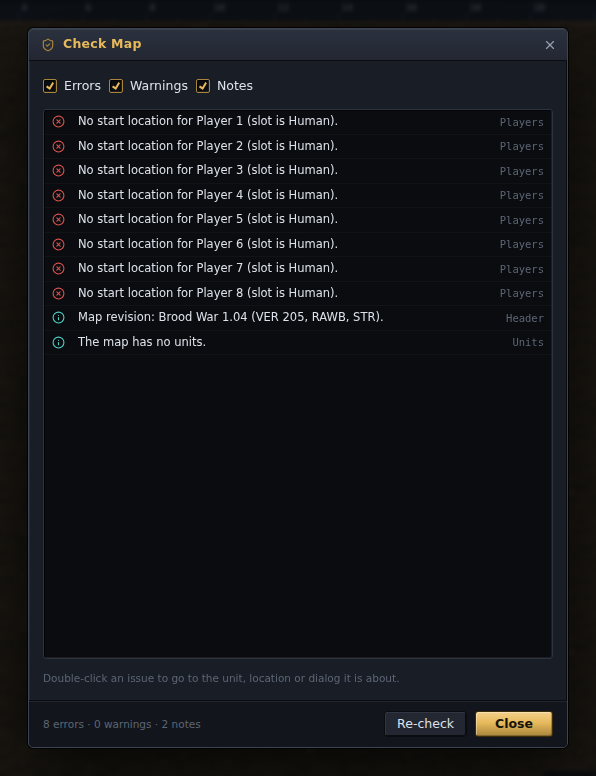
Tools ▸ Check Map looks for what the game would refuse or silently drop: start locations that do not match the player table, the unit limit (1700), off-map units, a missing or moved Anywhere, triggers pointing at unused locations or strings past the end of the table, unit and player values the game does not have, AI scripts it does not ship, Play WAV actions with no file in the archive, switches tested but never set, and the file's own health — missing sections, player types where StarEdit's copy disagrees with the game's, the isometric record. A map with triggers is a scenario, and gets the scenario checks too: a human player no trigger ever gives Victory or Defeat (in a scenario nobody wins or loses unless a trigger says so), a missing Set Mission Objectives, and — when hyper triggers are present — a Wait in another preserved trigger, which stalls that player's whole trigger queue. Double-click an issue to go to it. The same check runs inside the Save dialog.
Test Map#
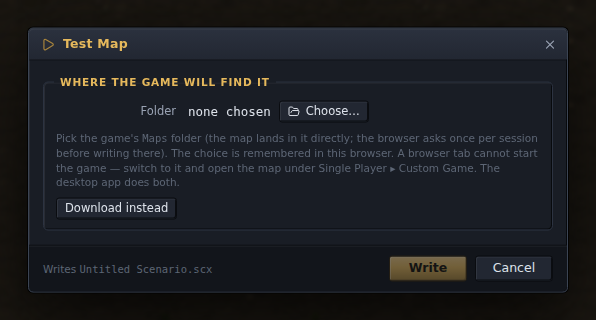
Tools ▸ Test Map (Ctrl+F5) hands the map to the game. Neither StarCraft build opens a map
from the outside, so the editor writes it into a scmJS folder under the game's Maps
folder, where Single Player ▸ Custom Game lists it. The desktop app finds the
installation (or takes a folder you pick) and starts the game as well; in Chrome and
Edge the map goes into a folder you pick once, and other browsers download it.
Saving#
Ctrl+S writes the map back where it came from. In Chrome, Edge and the desktop app the editor keeps a handle to the file it opened, so Save writes in place once the browser has asked for permission. Firefox and Safari give the editor a file's contents but no way to write it back, so there every save is a download, and the notice at the bottom right says so. Save As (Ctrl+Shift+S) and Save Copy As open the Save dialog; a copy is written without the open map changing its name or file.
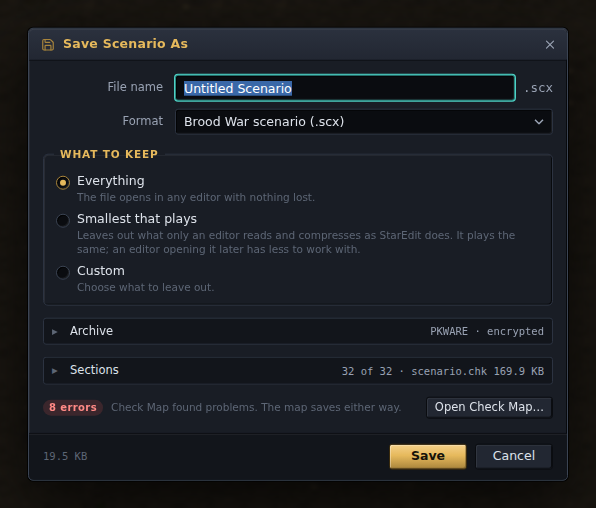
The Save dialog asks for a file name, a format and what to keep. Everything else is folded away underneath and can be left alone:
- Format:
.scx(Brood War),.scm(original StarCraft), or a bare.chk, the scenario alone with no archive around it. - What to keep: Everything writes the whole file, so any editor can open it with nothing lost. Smallest that plays leaves out the parts only an editor reads (the isometric record, the editor's copies of the player table and so on) and compresses the archive as StarEdit does; the map plays the same, but an editor opening the file later has less to work with. Custom shows each of those parts with its own tick. The map in the editor is not changed either way.
- Archive (folded): the compression and StarEdit's encryption tick, and the other files in the archive. PKWARE is what StarEdit writes and what Blizzard's own maps are stored as, so every StarCraft build reads it; zlib is smaller and needs 1.16.1 or Remastered; none is the largest and readable by anything. A map keeps the compression it was opened with, and the fold starts open when a map is not stored the usual way. The sounds and the files plugins keep in the archive each have a tick, so a copy for release can leave them out. A member the editor cannot name — a protected map's archive often has no file list — is kept exactly as stored, and the fold says how many there are.
- Sections (folded): every section the file will hold, with its size and whether it changed, was left out or was merged.
If Check Map finds problems, the dialog says how many beside a button that opens it; the map saves either way.
The options confirmed here are what Ctrl+S reuses for that map from then on.
A save that writes over a file keeps what it replaced. The desktop app copies the old
file to a .bak beside it first (Lagoon.scx to Lagoon.scx.bak, replacing an older
.bak), however the map was opened: File ▸ Open, Open Recent, a drop onto the window or a
double-click. If the .bak cannot be written (a read-only folder, say), the save still
goes through, a notice says why, and the old file goes to Previous Versions instead. A
browser cannot put a file beside another, so there the
version replaced is kept in the browser's storage, the last three of each file name, and
File ▸ Previous Versions… lists them: Open puts one in its own tab with
"(previous)" added to its name, and Save As writes it out as it was. A download
replaces nothing, so Firefox and Safari have nothing to keep. Preferences ▸ General ▸
Saving turns this off.
A plugin that compiles something into the map, as the eudplib plugin does for scripts that need Remastered, does it while the file is written. The file you save is the one the game plays, and it carries the map as you see it in the editor inside, which is what comes back when you open it again. A notice shows while the build runs, with a button to save without waiting for it. If the build fails, the map is still saved and the notice says what went wrong; the file then lacks the built part until a later save succeeds. Test Map builds the same way and stops on a failure instead.
Save to scmjs.dev…, under File and under Account, keeps a copy of the map on your scmjs.dev account as a numbered revision with a note — a backup with a history, and the way to reach the same map from another machine. It does not change where Ctrl+S writes. See Keeping maps on scmjs.dev.
Recovery copies#
While a map has unsaved changes, the editor keeps a copy of it in the browser's storage (the app's own storage in the desktop app): every two minutes, and whenever the editor goes to the background — another tab, the window minimised. The copy is removed as soon as the map is saved or closed, so a copy only survives when the editor closed with work unsaved: a crash, a closed tab, a power cut.
At the next start the Recover Maps dialog lists what was left, with the map's name, its file, its size and when it was copied. Restore opens the map in its own tab with its changes unsaved, under its old file name, so Ctrl+S writes back to the same file (after the browser asks again for permission). Later keeps the copies for the next start, and File ▸ Recover Maps… lists them at any time. Maps still open in another tab or window are never listed there.
Quitting the desktop app and answering Don't Save removes the copies, since that was the answer. A copy only covers changes up to its time, and it lives in this browser: it is not a backup of the file, and clearing the site's data removes it. Preferences ▸ General ▸ Recovery turns the copies off or changes how often they are made.
Export an image#
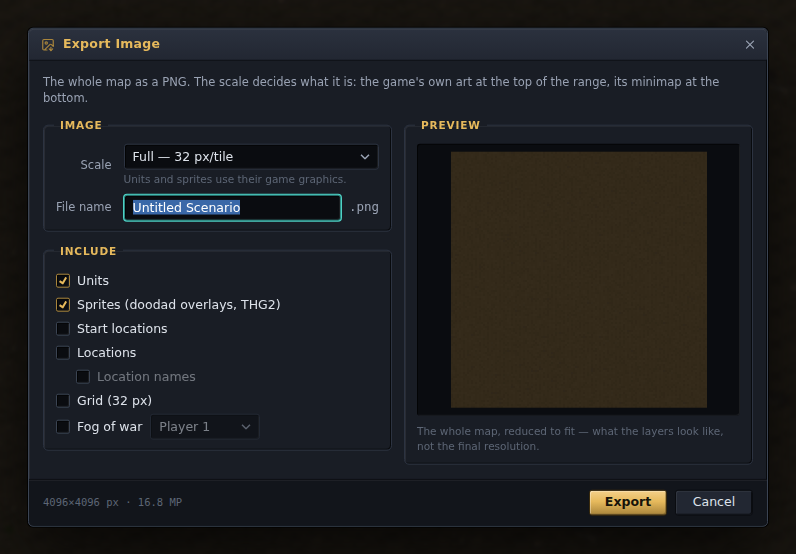
File ▸ Export ▸ Image renders the whole map to a PNG, with one dial that decides what the picture is: at 32 pixels per tile it is the full game art, at 8 or 16 the same smaller, at 4 and 2 the mean tile colours with units as minimap dots, and at 1 pixel per tile it is the game's minimap. Units, locations, fog and the grid are each a tick.
To show how a map was made rather than how it ended up, the Timelapse plugin (Plugins ▸ Browse Plugins…) records the map one change at a time and exports the recording as a GIF or a WebM video; see Plugins.
Tools ▸ Statistics counts what the map holds — units per player, resources, doodads, triggers, strings — and Ctrl+F finds a unit, location, sprite, string or trigger by name.