
Keyboard and preferences
Press F1 for a list of every shortcut. These are the ones the editor starts with; any of the commands can be given other keys on Preferences ▸ Hotkeys:
| Keys | |
|---|---|
T D U S L F C |
switch layer |
[ ] |
brush size |
| Alt+click | pick what is under the cursor |
| Ctrl+Z / Ctrl+Y | undo / redo |
| Del / Esc | delete selection / stop placing |
| Ctrl+O, Ctrl+S, Ctrl+N | open, save, new |
| Ctrl+T, Ctrl+Shift+T | trigger editors |
| Ctrl+F | find |
| Ctrl+A | select all on the layer |
| Ctrl+G | grid |
| Ctrl+0, Ctrl+Shift+0 | 100%, zoom to fit |
| Alt+Enter | map properties |
| Ctrl+F5 | test map |
| Ctrl+Tab, Ctrl+Shift+Tab | next / previous open map (desktop app) |
| Ctrl+Shift+A | AI assistant |
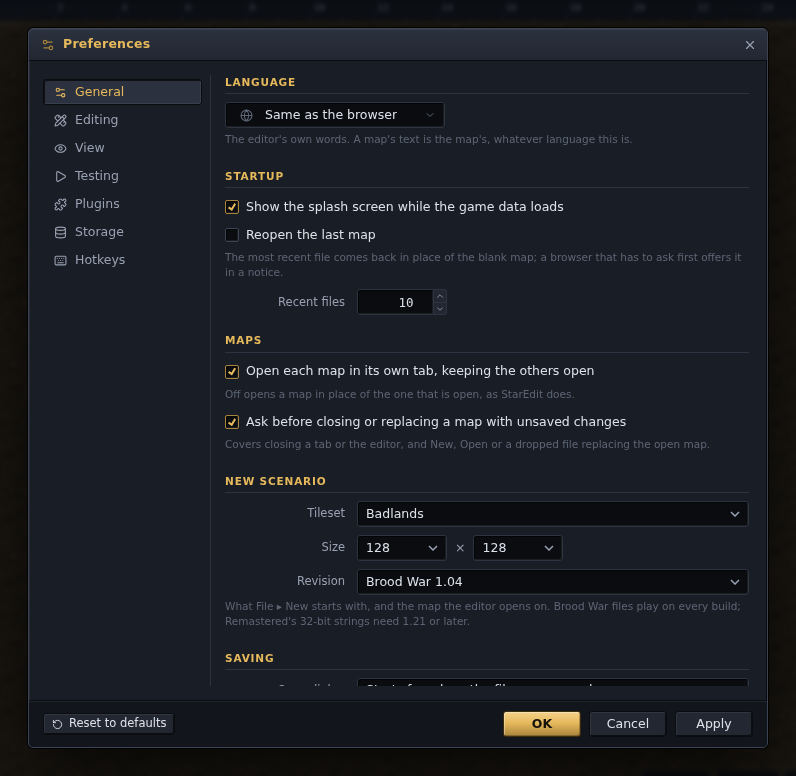
Preferences (Ctrl+,) are kept in the browser. The pages down the left:
- General — the editor's language (English or Korean; the default follows the
browser's, a change applies at once, and a map's own text is untouched by it), the splash
screen, whether to reopen the last map at startup (the desktop app does it straight
away; a browser that has to ask before reading the file again offers it in a notice),
how many recent files to keep, whether each map opens in its own tab, whether to ask
before replacing a modified map (the same tick decides whether closing the tab or
quitting the desktop app asks about unsaved changes), the tileset, size and revision a
new map starts with, and what the Save dialog starts from: how the file was opened, or
one of its presets, with the compression a map with no file yet gets, and whether a save
keeps the file it replaces (a
.bak, or a previous version in a browser); and whether to keep recovery copies of unsaved maps, and how often. The desktop app adds whether to check for updates at startup. - Editing — the grid's spacing, colour and style, and what snaps to it (View ▸ Grid Settings opens this page); what the palettes start on — the owner of placed units, the brush size, the size of a new location; and how many undo levels each map keeps.
- View — whether the mouse wheel scrolls (Ctrl+wheel zooms) or zooms, and whether a wheel zoom keeps the tile under the pointer in place; whether water and units animate and how fast; which cells the status bar shows (the tile, pixel and tile id under the cursor, the map size, tileset, layer, zoom and revision); and whether string previews follow Remastered's colour rule or 1.16.1's.
- Testing — Test Map's folder, and in the desktop app whether the game starts after the map is written.
- Plugins — what to do when an installed plugin has a newer version (a notice, nothing, or install it — see docs/plugins.md), and a plugin's own settings when it has a page here.
- Storage — where the game data comes from, and a list of everything the editor keeps in the browser, one row per setting or cache, with a plugin's own data under its name; each row can be cleared on its own, or Clear all data throws the lot away. Maps are not part of that list and are not touched by it; the recovery copies have their own line, with a way to the Recover Maps dialog and a Discard for copies left by earlier sessions, and so do the previous versions of saved files. Export writes the settings and the plugins' own as one file, and Import takes such a file into another browser or machine; caches and the recent files stay behind.
- Hotkeys — every command and its keys. + on a row waits for the next keys you
press and adds them (Esc stops waiting); the × on a key removes it, and a command can have
several keys or none. Keys used by two commands, or by a command and a plugin, are marked:
a plugin's keys are tried first, and between two commands the one higher in the list wins.
Delete, Esc, the arrows, Tab, Enter, Space and F11 keep their own jobs and cannot be given
to a command. A plain key such as
Tnever fires while you type in a text box, and most Ctrl shortcuts leave a text box's own undo, clipboard and select-all alone. The browser keeps Ctrl+Tab and Ctrl+W for its tabs, so Next Map and Close Map start with no keys there; give them others if you want them.
Nothing is written until OK or Apply; Reset to defaults puts every page back. The placement options, the panels and the recent files are remembered too.