
The workspace
This part covers the TrigScript window, the panel beside the map, and what happens to the script when the map is saved.
Opening the script#
Triggers ▸ TrigScript… opens the map's script in a window laid out like VS Code, with the same keys:
| Part | What is there |
|---|---|
| Explorer (left, Ctrl+B) | The script's files as a tree, and under them the programs with their variables |
| Strip at the far left | Switches the sidebar between the Explorer and Testing |
| Tabs (over the code) | One per open file |
| Icons right of the tabs | Play (F5), Simulate (Ctrl+F5), Apply (Ctrl+Shift+B), Pick from map, beside the map or in a window, and … for the rest |
| Panel (under the code, Ctrl+J) | Problems, Output, Simulate, Test Results and Settings (Ctrl+,) |
| Status bar | Problems, tests, whether the triggers are in the map, the last build |
| Command palette (F1) | Every command |
main.ts is where the script starts. New file and New folder add to it, and a row's
pencil and bin rename and remove a file. To move a file or folder, drag it onto a folder,
or rename it with a folder before its name. The imports that pointed at it are rewritten
to match, and the notice that says so has an Undo. Folders mean nothing to TrigScript
itself: tests/ is a habit, not a rule.
Edits are saved into the map as you type, since the files are part of the map archive, like a sound. Ctrl+S saves the map from inside the TrigScript window too.
The code is checked as you type, against the map's own names: locations. completes to
the locations the map has, units. to every unit type (and the map's custom names),
switches. to the switches, and players. to the forces. The status bar counts the
problems, and a click on the count opens Problems, the list of them.
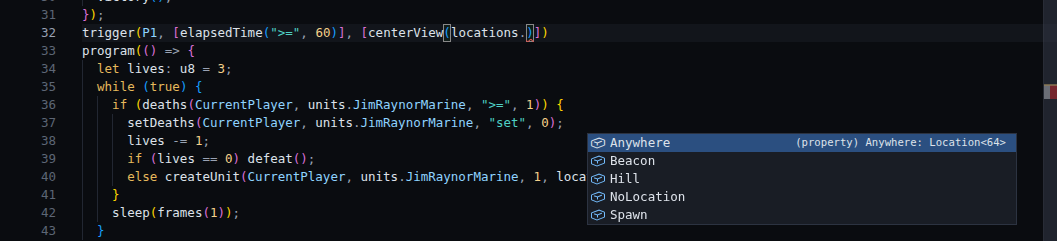
The Settings view holds what the map's author chose about how its programs are built, kept in the map so it builds the same on any computer: the memory for arrays that grow, how deep a function may call itself, and whether a failing test stops the build.
Beside the map#
The TrigScript window covers the map. To keep the map in reach, open the script beside the map: use the icon right of the tabs, or Triggers ▸ TrigScript beside the map. It is a panel over the map that blocks nothing: drag it by its title, resize it by its corner, and keep placing units while the code sits next to them.
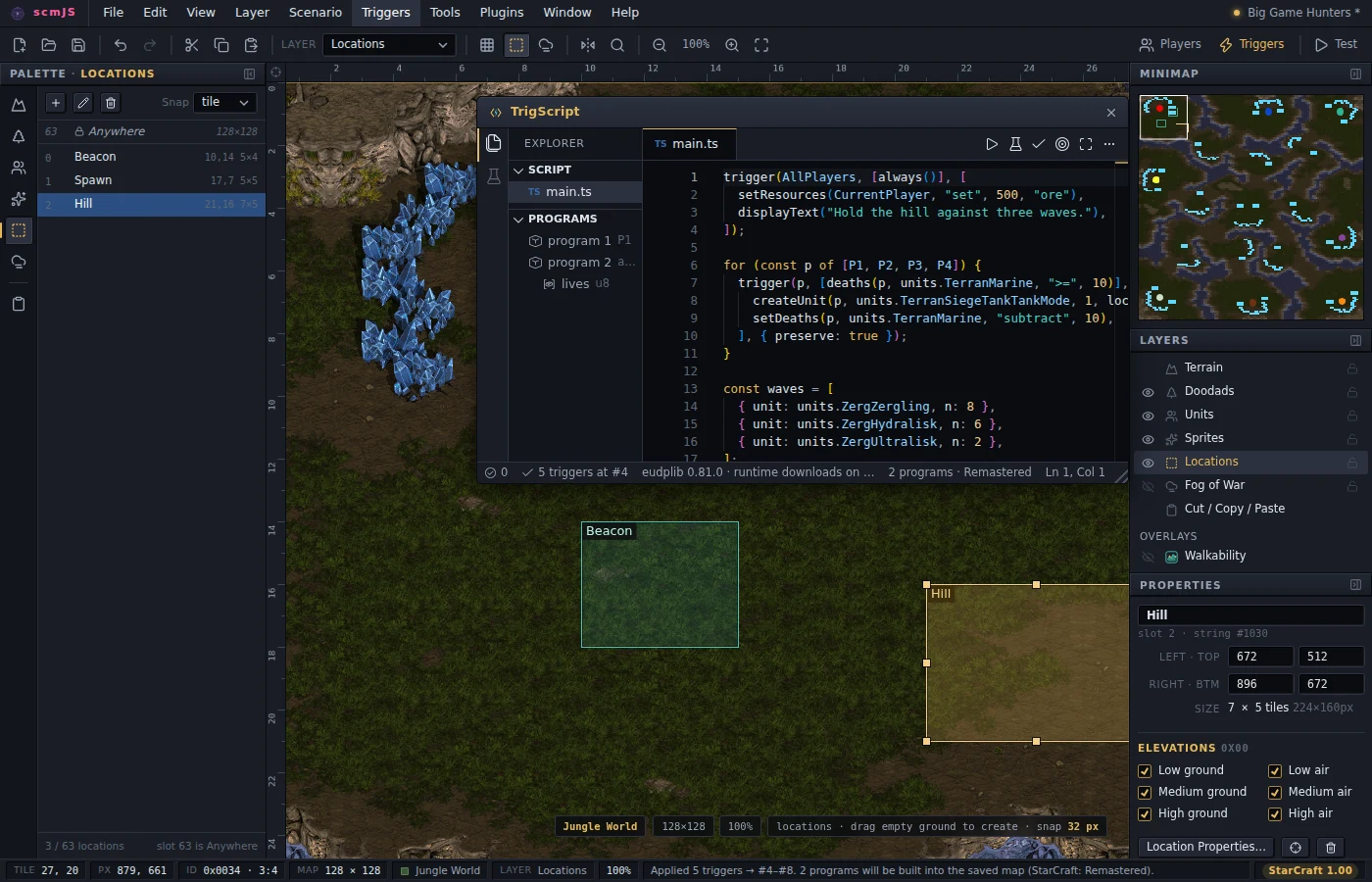
Beside the map, the names in the code and the objects on the map know about each other:
- Ctrl+click on
locations.Beaconscrolls the map to the location and flashes it. Hovering over the name says where it is and how big. - Pick from map (the target icon, or a right-click in the code): click a location or a
unit on the map, and its name (
locations.Beacon,units.TerranMarine) is typed at the cursor. From the window, it first moves the editor beside the map. - When you rename a location or a switch the script mentions, a notice offers to Update
references in every file. It follows the name the way the code does (an alias from
import { locations as L }counts) and leaves comments, strings and anything merely spelled the same alone.
Applying the script#
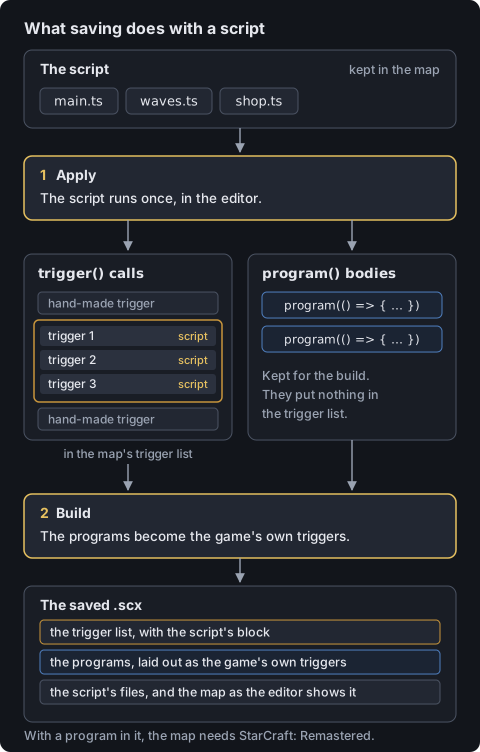
Applying the script runs it and puts the triggers it recorded into the map's trigger list as one block. The block replaces the one from the last apply, or is added at the end the first time. There is no step to remember: saving the map applies the script, and so do Test Map and anything else that writes the map out. A save then builds the programs, as the picture shows and Saving and building explains.
- Apply (Ctrl+Shift+B) applies the script without saving, so you can look at the triggers in the Trigger Editor first. A click on the status bar's trigger count does the same.
- Play (F5) applies the script, builds the map as Save would, and hands it to Test Map to start it in the game.
- Output, in the panel, keeps what each of them reported.
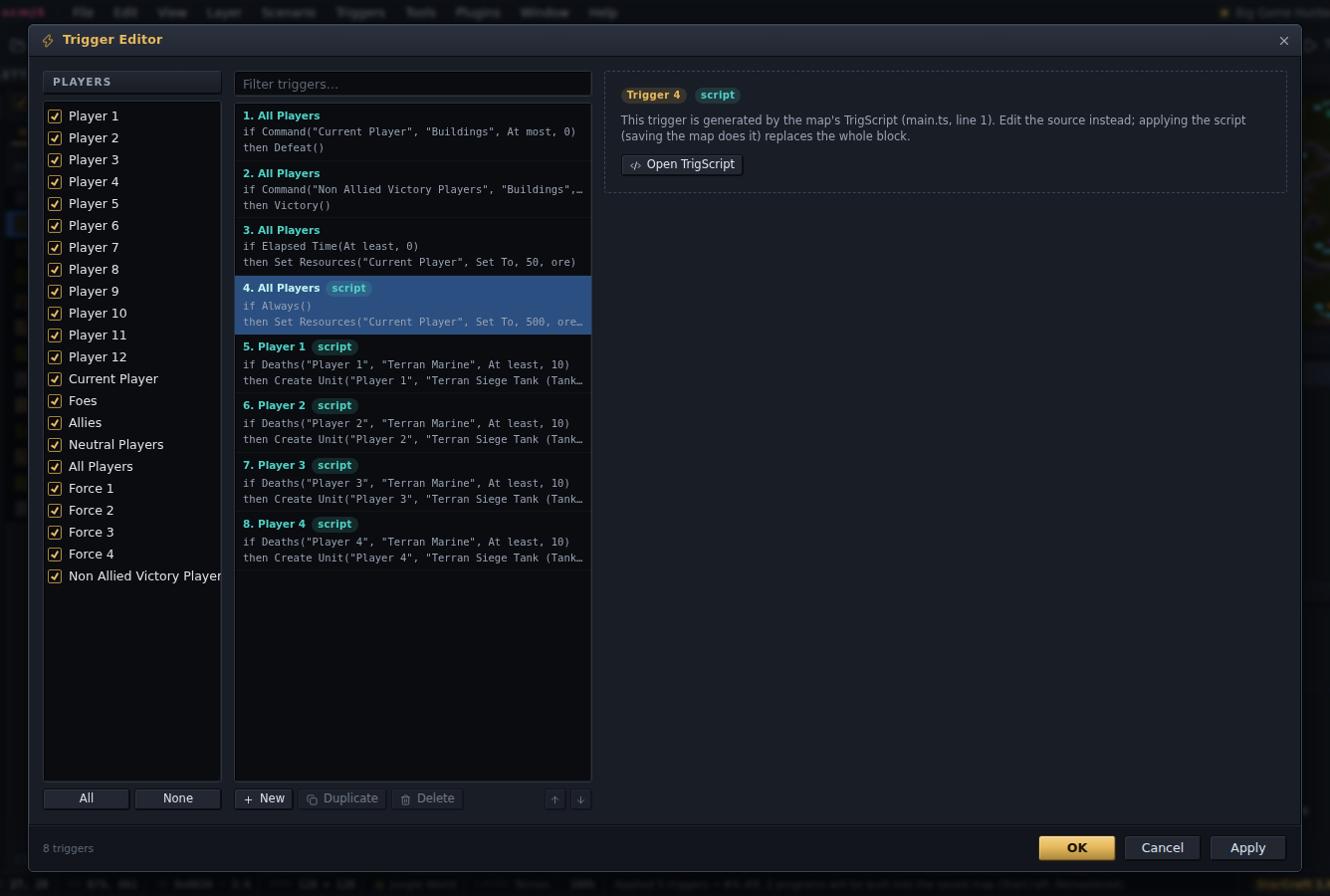
The Trigger Editor shows the script's triggers with a script badge and does not let you
edit them. Open TrigScript there jumps to the file and line that made a trigger. The
Text Trigger Editor fences them in comments. Hand-made triggers around the block are left
alone, and a hand-made trigger inserted before the block just moves the block along.
If the script has an error when the map is saved, the map is saved anyway, with the triggers from the last script that worked, and a notice names the file and the line.
Triggers edited by hand#
Editing one of the script's triggers outside the script makes the block stale. The editor says so the next time the script opens: how many triggers are still the script's, and how many were changed. While the block is stale, saving the map does not apply the script, and the notice on Save says so. The notice offers two ways out:
- Apply replaces the unchanged triggers and keeps the edited ones as hand-made triggers right after the new block, so a wave system tuned in one trigger does not come back twice.
- Append instead leaves all of them as they are and adds a fresh block after them.
Import the Map's Triggers (under …) goes the other way: it rewrites the map's
hand-made triggers as trigger() calls, in their order, so a map made in the Trigger
Editor can carry on as a script.
Saving and building#
A script with programs is built when the map is saved, tested or exported. TrigScript lays the programs out in the file being written, as the game's own triggers after the map's strings, and makes the file a Remastered one. It takes under a second, and nothing else has to be installed. The build also tidies the map as euddraft's build would: a null terrain tile becomes tile 1, and a placed unit's flags are made to agree with its values. The Output panel of the TrigScript window lists what it changed. A notice shows while the build runs, and its Save without it button saves at once, without the programs.
A script with something TrigScript does not take yet is not built: Problems says which line and why, as a warning, and the save's notice says so again, with a button to save without the programs. The rest of the map is saved as it is. A map with Magenta's rows is built in the same pass: Magenta writes its rows as TrigScript and hands them to this build, so the two share one layout.
The file you get is the one to play and to share. It also holds the map as you see it in the editor, which is what comes back when you open it again, so the trigger list never fills up with what the build generated.
The script's files and a record of the last apply live in the map archive under
trigscript\ (main.ts, any other files, and build.json), so they travel with the
.scx. The Save dialog lists them with the archive's other files, each
with a tick, so a copy for release can leave the source out. The triggers stay either way.