
The editor window
The window has nine parts, numbered in the picture below.
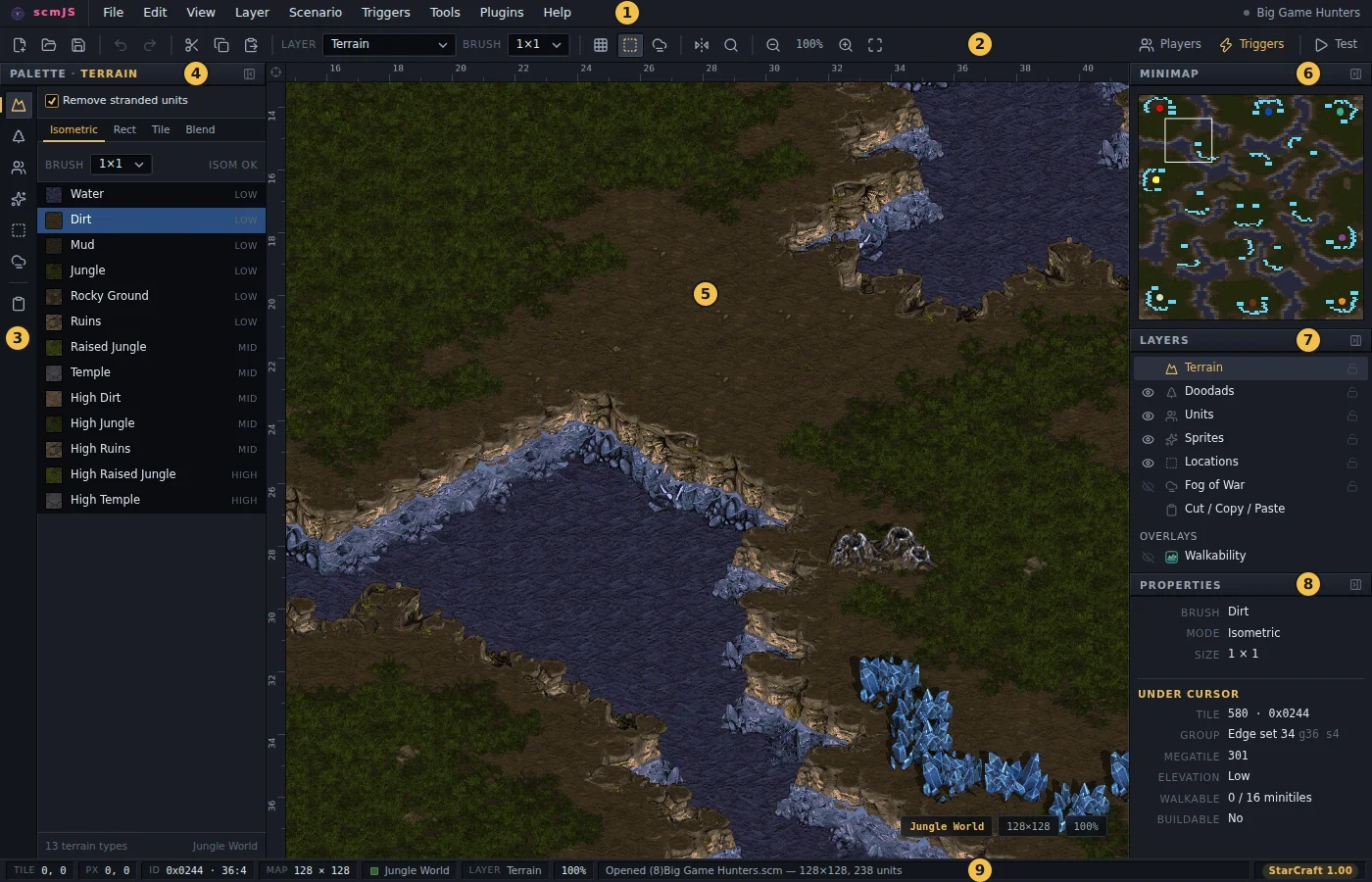
- Menu bar. Every command is here, with its shortcut beside it. The dot at the right end glows while the map has unsaved changes.
- Toolbar. New / open / save, undo and redo, cut / copy / paste, the active layer and brush size, the grid, locations and fog-of-war toggles, symmetry, find, zoom, and buttons for Player Settings, the Trigger Editor and Test Map.
- Layer rail. The seven layers, top to bottom: Terrain, Doodads, Units, Sprites,
Locations, Fog of War, Cut / Copy / Paste. The keys
T D U S L F Cswitch between them. - Palette. What the active layer places: terrain types and brushes, doodads, unit types, sprites, the location list, the fog players, the clipboard options.
- Map. Drag to paint or place, click to select, double-click for properties. Right-click opens a context menu, or stops whatever you are placing.
- Minimap. Click or drag on it to move the view.
- Layers panel. The eye hides a layer's objects from the view; the padlock locks a layer so its tools stop changing the map. Plugin overlays (Walkability, say) are listed under it.
- Properties. What is selected, or what is under the cursor: for a tile its id, group, elevation, walkability and buildability; for a unit its owner, position and vitals; for a location its bounds and elevation flags.
- Status bar. The tile and pixel under the cursor, the tile id, map size, tileset, layer and zoom, and a line saying what the last action did or why it was refused. At the right end, your scmjs.dev account (or Sign in to scmjs.dev) and the AI's state, each a click to open.
Open a second map and a row of tabs appears under the toolbar, one per open map, with a glowing dot on any that has unsaved changes. Click a tab to switch, or use the Window menu (Ctrl+Tab and Ctrl+Shift+Tab in the desktop app); the × on a tab, a middle click, or File ▸ Close closes that map, asking about unsaved changes first. Each map keeps its own undo history, selection and view, so switching back lands where you left off. With one map open there is no row: the window looks as it always has. Preferences ▸ General can turn this off, and then Open and New replace the open map as StarEdit does.
Scroll with the mouse wheel (Shift for sideways), the arrow keys (Shift for half a screen), a middle-button drag, or the scrollbars, or click on the minimap. A drag that reaches the edge of the window scrolls the view along with it, so a stroke, a marquee or a unit being moved can carry on past what is on screen; it speeds up the further past the edge you push and stops when you let go. Ctrl++ and Ctrl+− zoom, as do the toolbar's magnifiers; Ctrl+0 is 100% and Ctrl+Shift+0 fits the whole map in the window. Ctrl+G shows the grid, and View ▸ Grid Settings (the Editing page of Preferences) sets its spacing, colour and style. The panels can be hidden from View ▸ Panels and their widths dragged.
Every layer has its own selection and its own palette. Undo is Ctrl+Z, two hundred steps deep and shared across all the layers, so a terrain stroke and the units it stranded come back together. Anything done in a dialog — player settings, triggers, strings — is its own OK / Apply / Cancel transaction and is not in the undo history, as in StarEdit.