
The AI
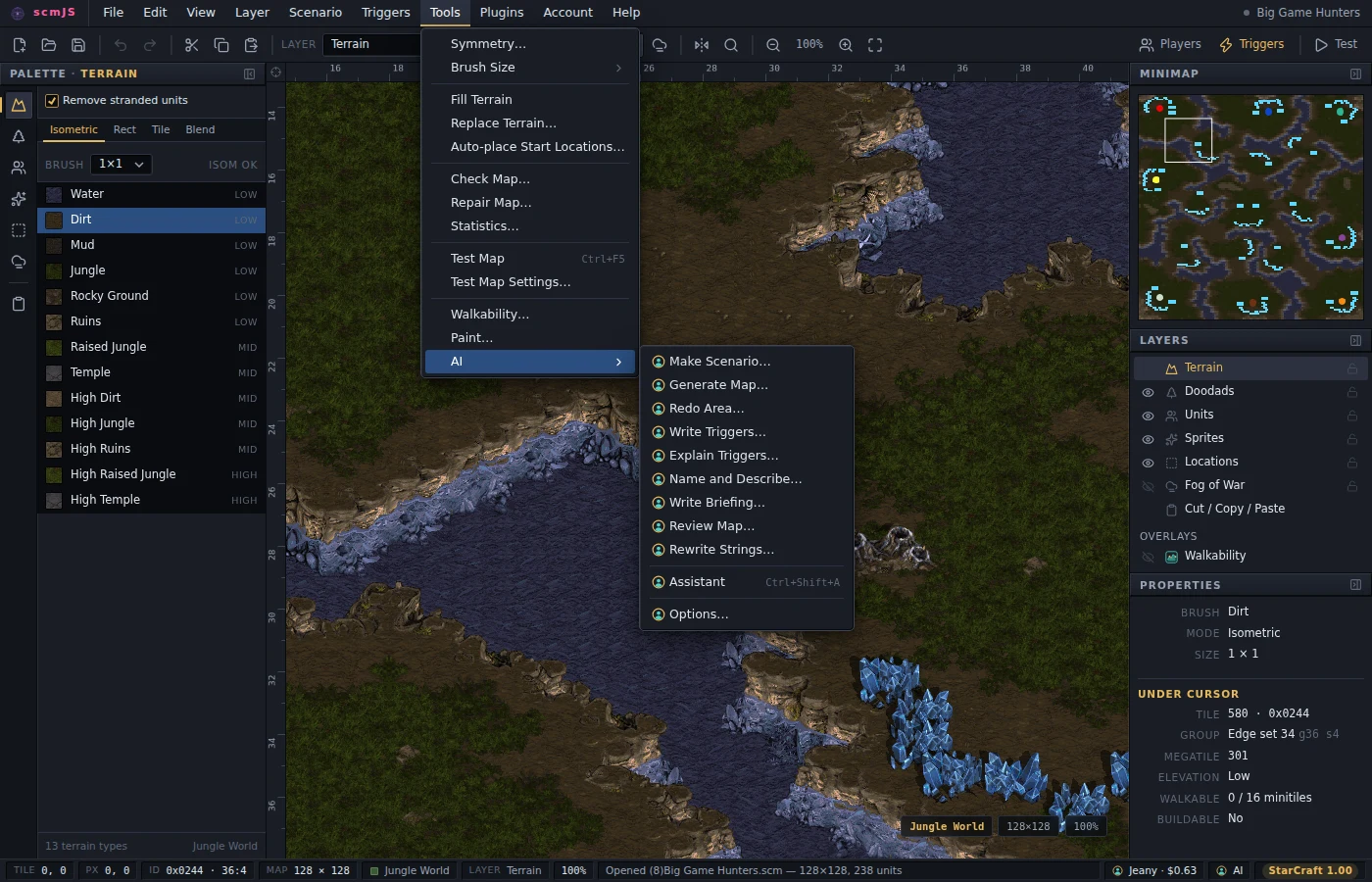
Tools ▸ AI holds the AI features. They come with the editor as part of the scmjs.dev plugin and run on scmjs.dev, so there is no key to paste and no server to set up. The first request starts the free trial. The previous section covers the account and what requests cost.
A few things are the same for every feature:
- What is sent. Only what the feature needs: what you typed and the map's facts (size, tileset, players, what is where). Some features also send a picture of the map, the strings or the triggers. The map file itself is never sent.
- Undo. Every change the AI makes is one undo step, labelled "AI: …". The exception is anything written through a settings dialog (the name and description, strings, triggers, players, unit settings). Those changes are left out of the undo history, just like when you make them by hand, and the dialogs point this out.
- Cost. Every AI dialog shows its progress while you wait, and the cost when it finishes.
The assistant#
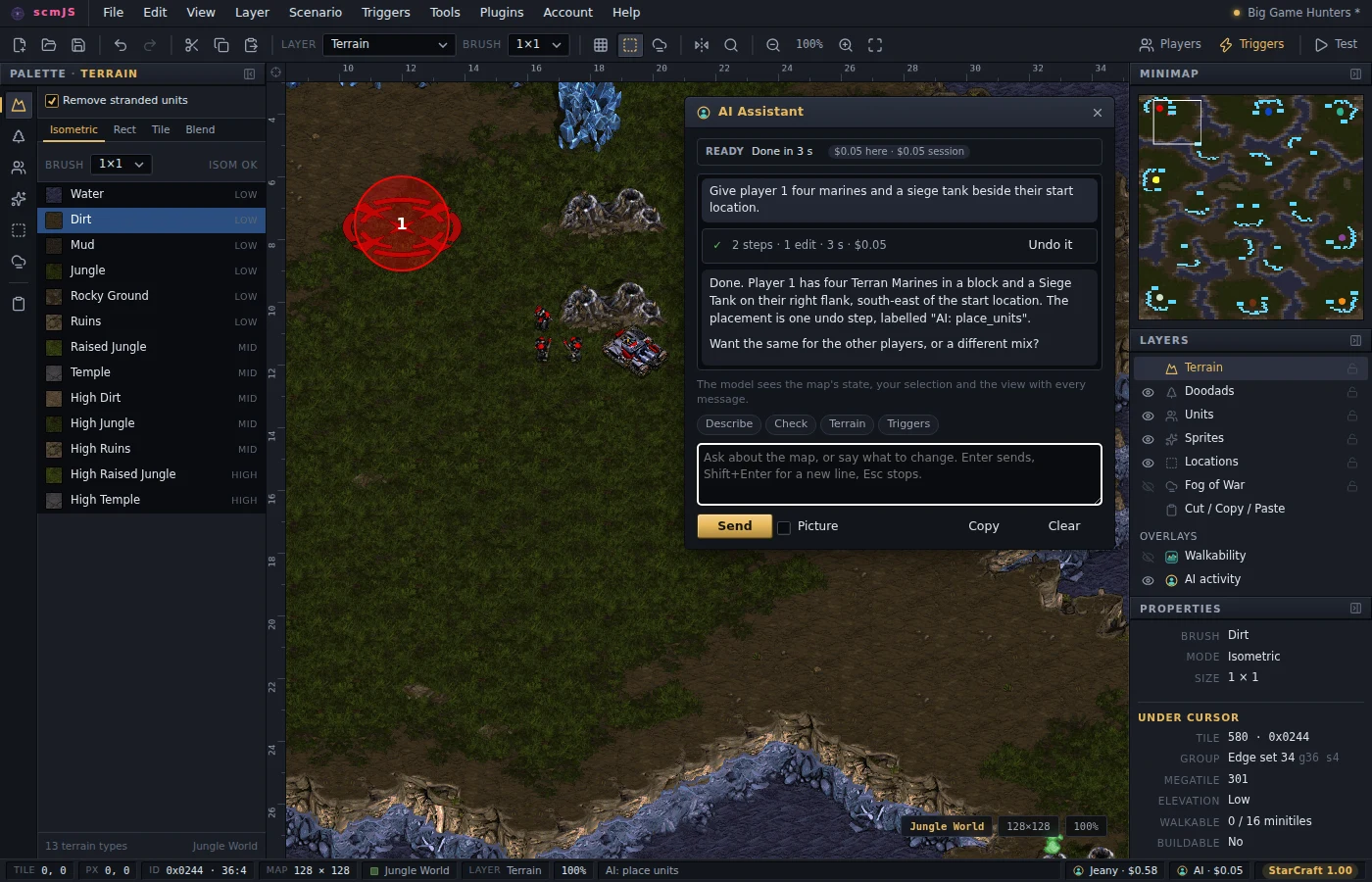
Assistant (Ctrl+Shift+A, or the AI cell in the status bar) opens a conversation about the open map. Ask a question or say what to change. The assistant reads the map and edits it with the editor's own tools while you watch.
It can read everything: the map's facts and statistics, units with all their properties, doodads, sprites, locations, strings, switches, sounds, the triggers and trigger script, unit, upgrade and technology settings, fog, terrain, Check Map results, your selection, and a screenshot of any area.
It can change nearly everything the editor can: terrain, units, doodads, sprites, locations, fog, the map's name, triggers, strings, the trigger script, players and forces, unit, upgrade and technology settings, and the map's size. It also knows the systems and layout presets that Make Scenario uses, so "add kill to cash" or "make this a two-lane defense" takes one step. It draws terrain as shapes, such as a plateau with a ramp that fits, a lane that stays walkable or a river with a bridge. It can tell you whether units can walk from one place to another. It also checks the rules the game enforces without telling you (a player who owns nothing is defeated at once), and fixes them if you ask.
Watching a turn. Each turn shows your message, the answer, and the work in between, folded into one block. While the turn runs, the block shows its latest steps: ▸ marks a read and ✎ a change. The strip at the top of the panel shows what the assistant is doing, how long it has taken and what it has cost so far. When the turn ends, the block folds to one line showing the step and edit counts, any failures, the time, the cost and an Undo button that reverses all of that turn's edits at once. Open the block to see every step, the screenshots the assistant took (click one to enlarge it) and its reasoning.
On the map, the area a step is about to change is outlined, and the result flashes after the change. The view moves to each step and zooms out if the area is too big to show, but it never zooms in. If you scroll or zoom yourself, the view stays where you put it for the rest of the turn. To turn the following off completely, untick Follow the assistant's work around the map in Tools ▸ AI ▸ Options…. You can close the panel while the assistant works, since the status bar shows the same progress. Escape stops the turn.
Starting a message. The chips above the input suggest questions based on the layer you are on and what you have selected. You can also right-click the map and choose Ask AI about this spot / the selection / this area…. Tick Picture to send a screenshot of the visible area with your message. Player Settings has a Set up with AI… button that sets up players and forces from one sentence.
Cost and limits. Every message includes the map's current state: players, counts, locations, the selection, the view and the latest undo step. The first message about a map also includes a reference for the tileset, doodads, units and trigger vocabulary. scmjs.dev caches that reference, so later messages cost little more than the words you type. After 24 rounds of tool calls the assistant stops and offers to continue. You can change that number in Options.
Make Scenario#
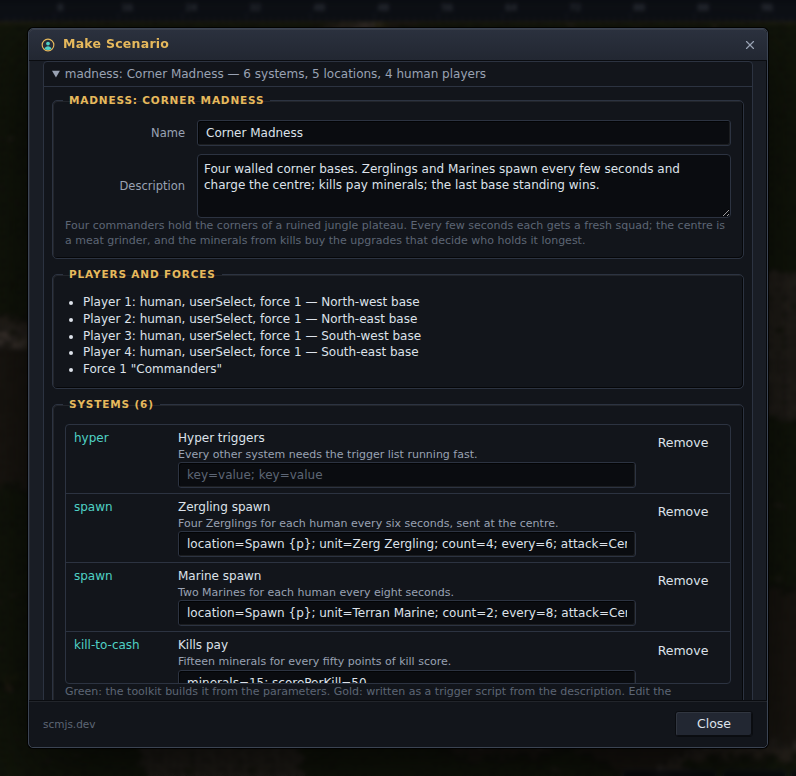
Make Scenario… builds a whole scenario from a sentence, such as "a madness map", "an RPG about a marine lost on a Zerg world" or "a two-lane tower defense". Set the size, tileset and number of players, then press Design.
The design. The model starts with a design document and builds nothing until you have read it. The document covers the genre and premise, the players and forces, each trigger system and its settings, a plan for the layout and the locations it needs, the objectives and the briefing. You can edit any of it directly, or open Change the design first, describe what should be different and press Design again.
A location name in a system's settings can include {p} for the player number, as in
"Spawn {p}". That system is then built once for each player, as long as the numbered
locations exist.
Building. Build works through the design one step at a time. Each step is a row that passes or fails separately: the map, terrain and locations, players and forces, each system, the objectives and briefing, the name, and a Check Map at the end.
- Terrain. If the design matches a layout preset (corner camps around an arena, lanes from spawns to a goal, a walled arena, a bound's winding course, or a town with a chain of regions), the editor lays out the terrain itself in about a second. Otherwise the model describes the terrain as shapes such as plateaus, lanes, rivers and arenas, and the editor draws them with its own brush. That keeps lanes connected and puts ramps and bridges only where they fit. This is the slow step, and a clock and the model's reasoning show under the rows while it runs.
- Ramps and bridges. Ramps always slope down toward the south-west or south-east, like the game's own ramps. Ice gets no ramps, and bridges are only drawn in Jungle and Space Platform, because those are the only tilesets whose pieces fit what the brush draws.
- Systems. The editor builds the systems it knows directly from their settings, the same way every time, and shows them in green. These include hyper triggers, timed spawns, kills paid in minerals, income, waves, lives, shops, healing, respawns, teleports, kill zones, leaderboards, countdowns, last standing, alliances, escalation stages, and a bound's obstacles and checkpoints. Anything else is written in TrigScript and shown in gold, which requires the TrigScript plugin.
When it finishes, choose Review it… or Open the assistant to keep going.
Generate Map and Redo Area#
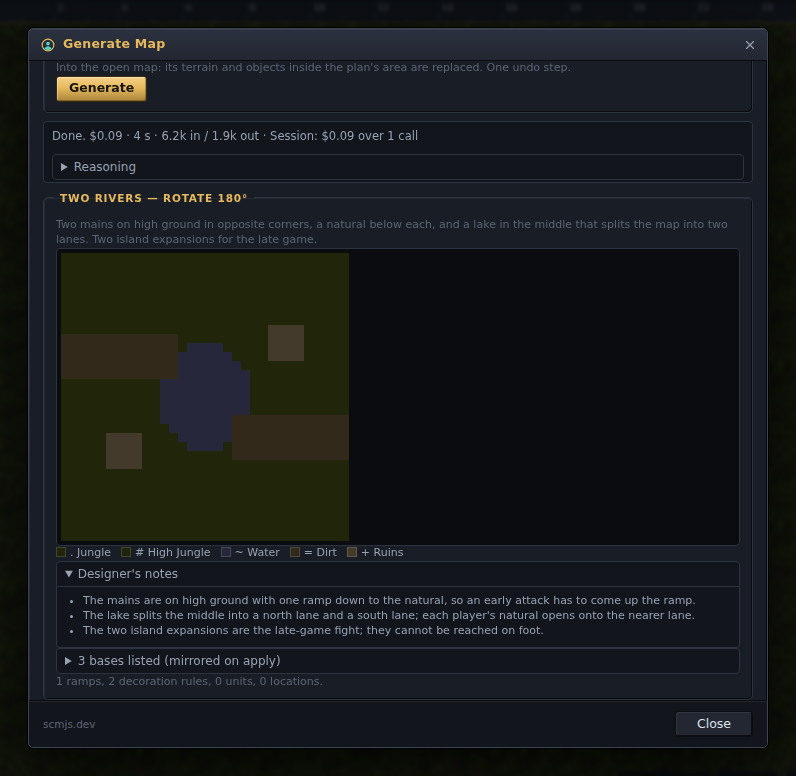
Generate Map… lays out a map from a description: the number of players, the kind of terrain, where the bases go and the symmetry (or let the model choose). The result is a plan, shown before anything is painted. It includes a rough grid of terrain types, the bases with their mineral lines and geysers, ramps, decoration, a name and description, and the designer's notes on how the layout is meant to play.
Apply paints the plan onto a new map with your chosen size and tileset, or onto the open map if it is the same size. Terrain is painted with the isometric brush from the lowest ground up, so cliffs and shores form on their own. Bases are laid out the same way the Melee Wizard does it, and doodads are scattered where the plan puts them.
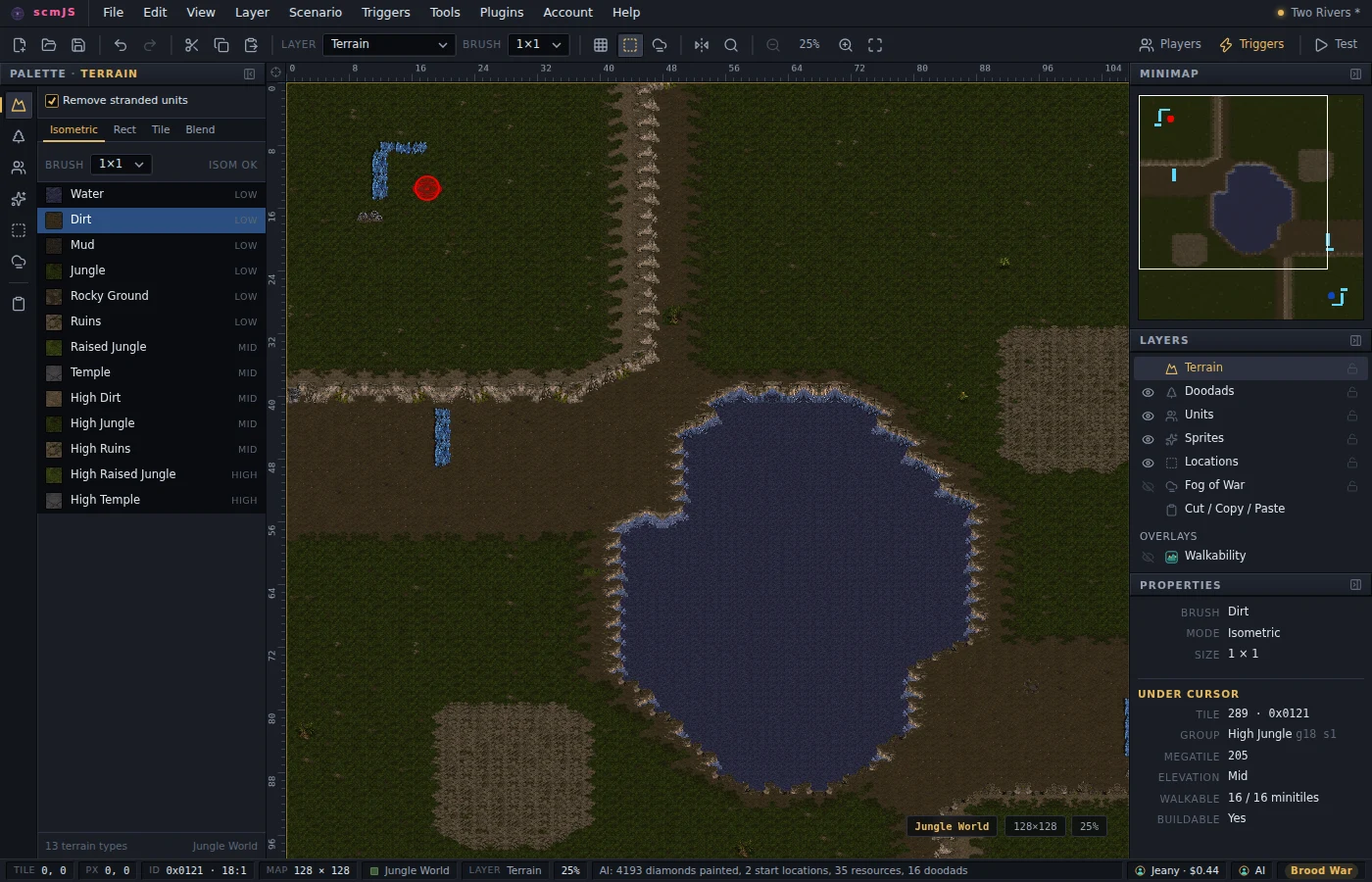
Treat the result as a starting point. Refine sends the plan back along with your changes ("more room around the naturals", "swap the lake for a plateau"), a picture of the result, and anything the editor refused or Check Map flagged. The revised plan replaces the old one, and the earlier result is undone first if nothing else was edited in between. Ramps are placed as doodads chosen by size, so check them against the cliffs before you play.
Redo Area… does the same for one part of an existing map. Mark an area (or right-click it and choose Redo this area with AI…) and describe what should be there. The model sees the area and a margin around it, plus a picture, so the new ground joins the old at the edges.
Triggers#
Write Triggers… turns a description into triggers written in TrigScript, so the TrigScript plugin must be switched on. The model sees the map's own names for its units, locations and switches. The script is checked here, and if it fails, the errors go back to the model for up to two rounds of fixes. Build installs it the same way TrigScript's own Build does, and the source is kept with the map. You can add to the map's existing script or replace all of its triggers.
Explain Triggers… describes what the triggers do in play. It can cover all of them, a range, or the mission briefing, or answer a question about them. The explanation appears as it is written. The Trigger Editor, the Text Trigger Editor and Mission Briefing also have Explain, Write… and Ask buttons.
Names, briefings, reviews and strings#
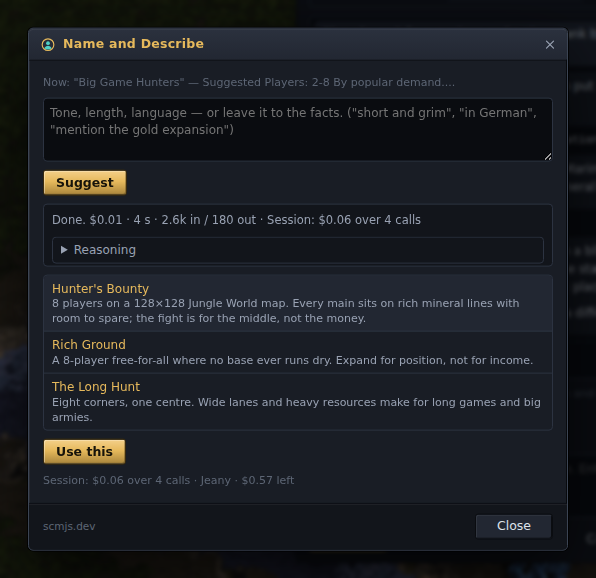
Name and Describe… suggests three names with descriptions based on what is on the map. You can add a hint such as "short and grim" or "in German". Pick one and Use this writes it into Map Properties. Map Properties also has a Suggest a name button that fills in its fields the same way and waits for you to press OK.
Write Briefing… writes objectives and narration and creates one mission briefing trigger per player, with the objectives as a Mission Objectives action and each line as a Text Message. You can edit the text before it is written.
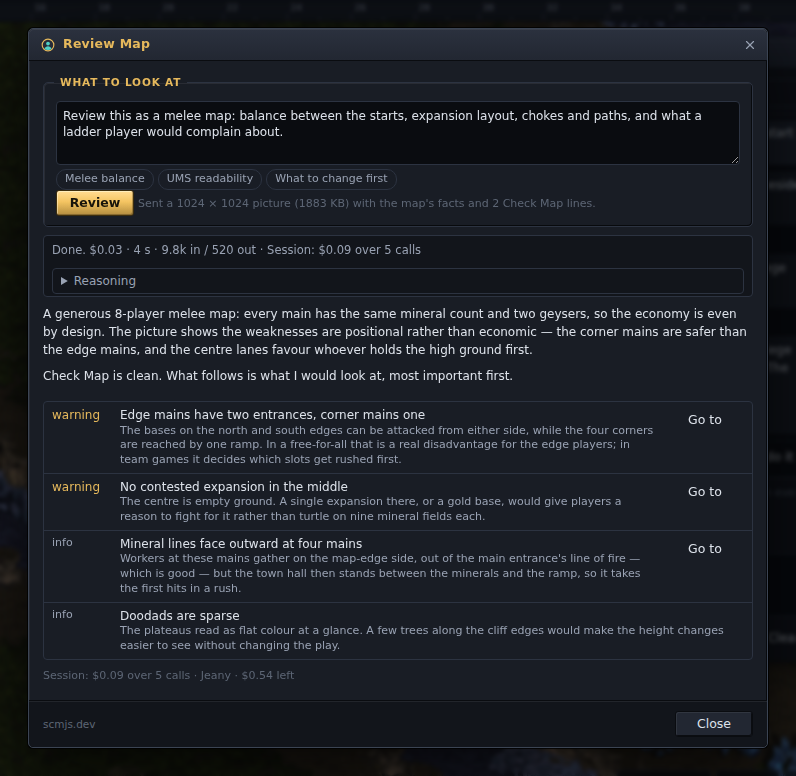
Review Map… sends a picture of the whole map with its statistics and Check Map results. It returns a critique and a list of findings marked info, warning or problem, and findings that refer to a spot on the map have a Go to button. The chips offer a melee balance review, a readability review for scenarios, or "what to change first".
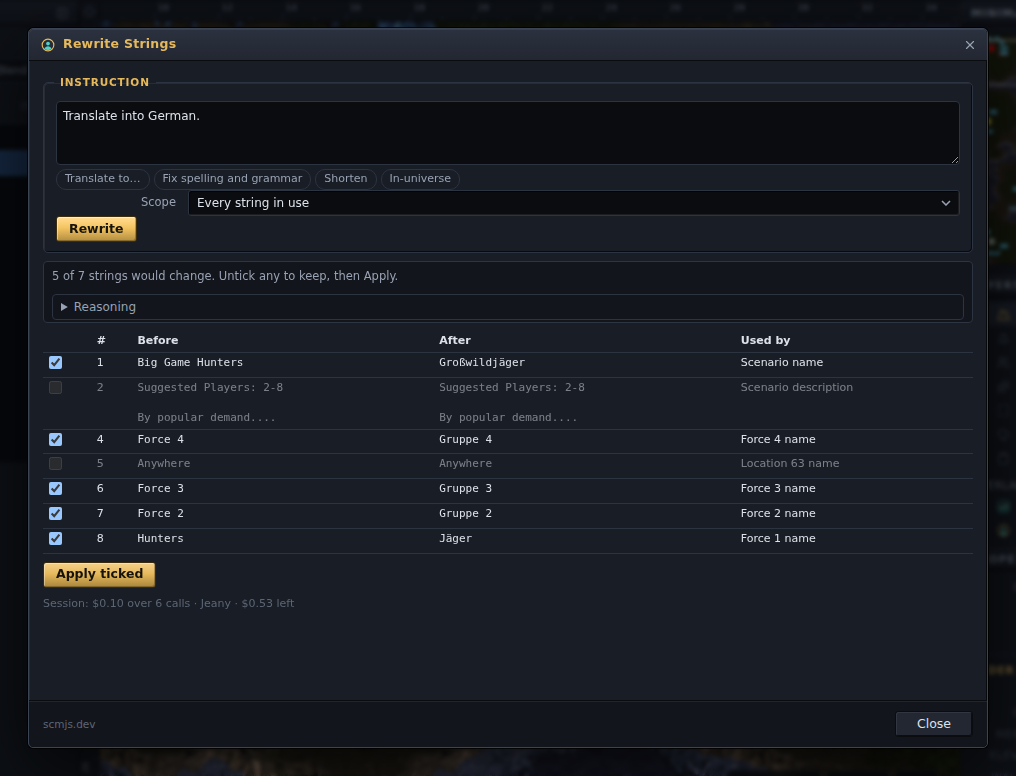
Rewrite Strings… applies an instruction to the map's strings, such as translate, fix spelling and grammar, shorten, or match the map's voice. It can cover every string in use, or only trigger text, the briefing or names. It shows a before-and-after table with a tick on every row that would change. Apply ticked writes them back in place without renumbering, so triggers still point at the right strings. The String Editor's Rewrite with AI… button opens the same dialog.
Options, and turning it off#
Tools ▸ AI ▸ Options… has a few settings:
- Quality sets how much effort the model puts into each request, and so how long it takes and what it costs. Standard uses the level each feature was tuned for, Quick is the cheapest and Thorough the most careful. You don't choose the model; scmjs.dev picks it.
- Assistant sets the rounds of tool calls per message and the picture tick. It also sets whether the panel floats over the map or docks on the right under the Properties panel, and whether the model's reasoning summary shows while it works.
Use the AI features, at the top of Options and also in the Account dialog, removes the whole AI when unticked: the menu, the assistant, the status-bar cell and the AI buttons in other dialogs. Your account and the maps stored on it are not affected.