
AI tools
Claude Desktop, Claude Code, Cursor and other AI apps working on your maps through scmjs mcp: setting it up, what to ask, watching and undoing the changes in the open editor, when something goes wrong, and every tool.
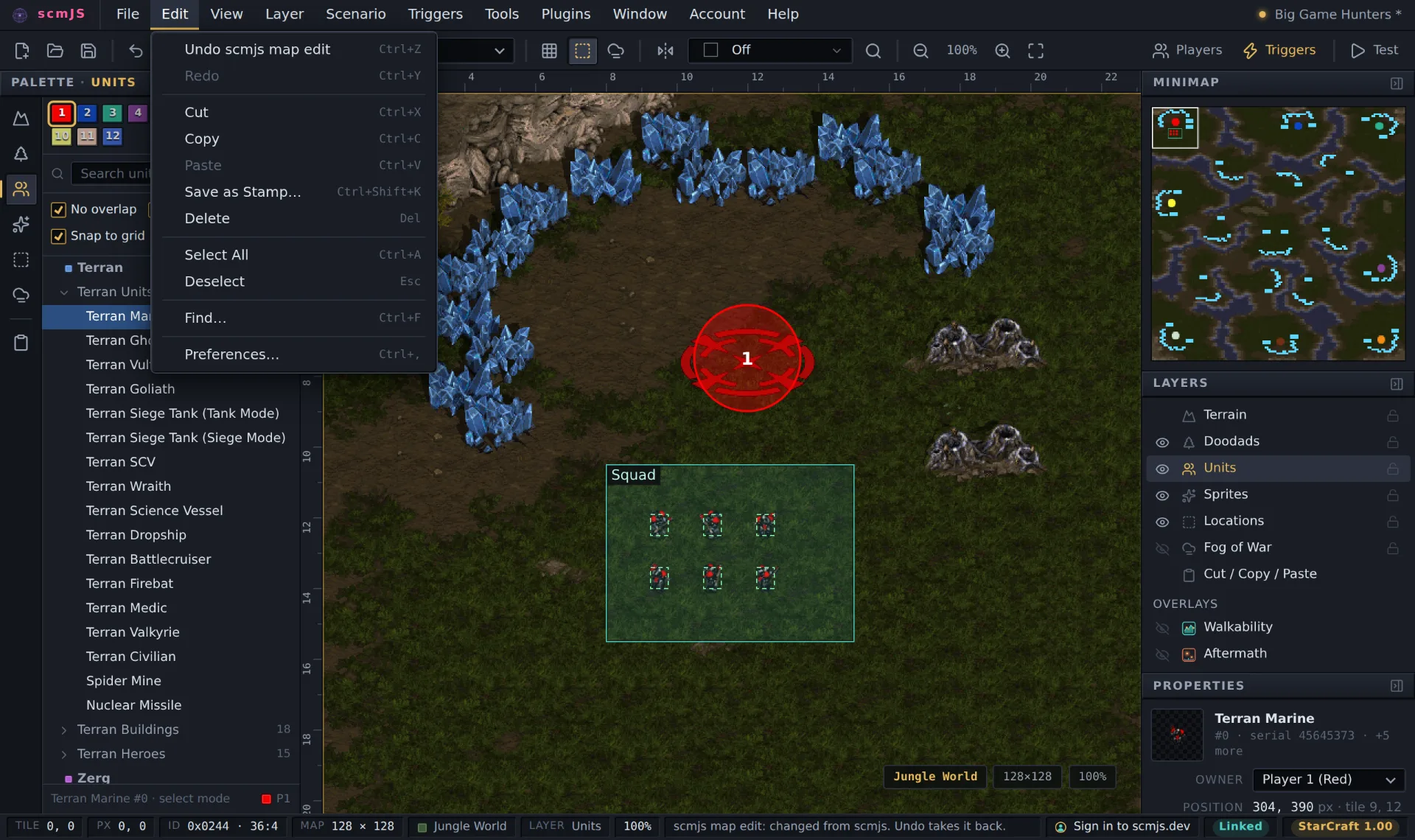
You can ask an AI app such as Claude about your StarCraft maps in plain words, and it works on them with scmJS: "what is wrong with this map?", "give Player 1 six more Marines", "make me a four-player desert map". It reads and changes the maps in your maps folder with the editor's own code, so what it tells you about a map is what Check Map in the editor would show. With the map open in the editor, you watch each change arrive and can undo it.
There are three ways to use it:
| What you need | Good for | |
|---|---|---|
| Tools ▸ AI in the editor | Nothing to install | Asking about the map you have open. The user guide covers it in The AI |
| Claude Desktop | The Claude app and one file from scmJS | Any map in your maps folder, from a chat window |
| Claude Code, Cursor and others | scmjs, or Node.js |
People who already work in a terminal or a code editor |
This guide is about the last two. If you have not used a terminal before, use Claude Desktop.
- Getting started1.
- What to askAsk as you would ask a person who knows StarCraft maps.
- Working in the editorAsk the AI to open the map in the editor, or link it yourself with scmjs map open --live.
- When something goes wrong
- Changing a mapThis part and the ones after it show exactly what the AI sends to scmJS and gets back.
- Your scmjs.dev accountThe account tools are a set of their own, switched off at first: tick scmjs.dev account tools in the Claude Desktop extension's settings, or start the server with --tools account (or --to…
- The toolsThere are 59.
- Your files and the gameWhat the tools may touch on your computer and your account, and which of them need your copy of StarCraft.
- In the source