
Getting started
Claude Desktop#
Install Claude Desktop and sign in.
Download the scmJS extension for your computer:
On a Mac, Apple menu ▸ About This Mac says which you have: "Chip" means Apple silicon, "Processor … Intel" means Intel.
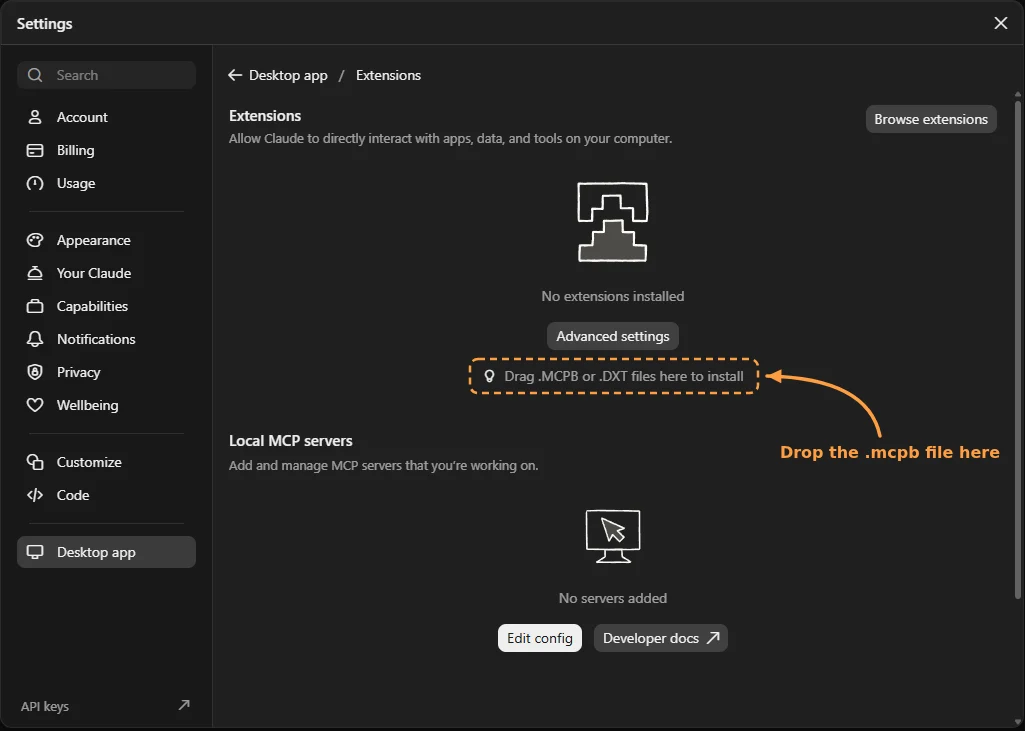
In Claude Desktop, open Settings ▸ Desktop app ▸ Extensions and drag the file you downloaded onto the page.
Claude Desktop shows what scmJS is. Click Install. The dialog warns that an extension gets access to everything on your computer. It says that about every extension, because an extension is a program that runs as you. scmJS's tools only take files in the maps folder you choose, and its code is public on GitHub.
Claude Desktop then asks for your Maps folder. Click Browse and choose the folder you keep your maps in. StarCraft's own is
Documents\StarCraft\Mapson Windows (inside your OneDrive folder if Documents is kept there), and~/Library/Application Support/Blizzard/StarCraft/Mapson a Mac. The AI can read and change files in that folder and the folders inside it, and nowhere else.Leave StarCraft folder empty. It is only needed if scmJS cannot find your copy of the game by itself; When something goes wrong says how you would know. Click Save.
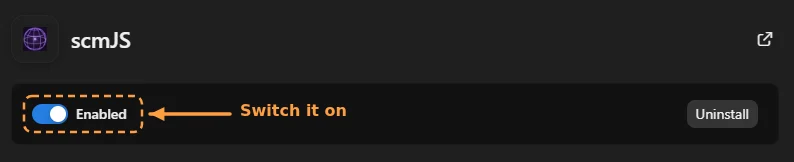
Back on the Extensions page, click scmJS and switch it on. Claude Desktop leaves it off after the install, even once the maps folder is saved.
Start a new chat: at the top of the sidebar, click the speech bubble (Chat), not
</>(Code). If the sidebar is hidden, the panel button at the top left shows it.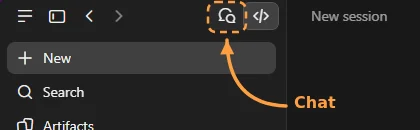
You do not need a terminal or Node.js: the extension carries everything it needs. To update it, download the newest file and drag it onto the Extensions page the same way. You can change the maps folder later under Settings ▸ Desktop app ▸ Extensions ▸ scmJS.
The extension starts with the tools for maps. Three more sets are off until you tick them on the same settings page: Mod tools, Replay tools and scmjs.dev account tools. Start a new chat after ticking one. They are separate because every tool is something the AI reads at the start of each chat and something you are asked to allow, and most people working on a map never use those three. The tools lists what is in each set.
Checking that it works#
In a new chat, ask:
Check my scmJS setup.
scmJS gives Claude a set of tools: its commands for reading and changing maps. Claude asks before it uses one. Click Allow once, or Always allow for a tool you are happy to let it use without asking.
Here it runs scmJS's own check and tells you what it found: the version, whether it found your copy of StarCraft, and which sets of tools are switched off. With the scmjs.dev account tools switched on, it also says whether you are signed in and offers to sign you in; that is only needed for sharing and for your scmjs.dev library.
Then ask about one of your own maps by its file name, for example:
What is in ridge.scx?
If Claude says there is no such file, see When something goes wrong.
Claude Code#
Once, in the folder your maps are in. This adds scmJS to Claude Code as an MCP server, the
way AI apps reach outside tools, and npx fetches it; that needs Node.js 22.12 or newer:
claude mcp add scmjs -- npx -y @scm-js/cli mcp
If scmjs is installed (from a package manager, a download or npm install -g), name it
directly instead. It starts faster:
claude mcp add scmjs -- scmjs mcp
Either line gives the AI the tools for maps. For the mod, replay and scmjs.dev account
tools as well, add --tools all at the end, or name the sets you want:
--tools mods,account.
scmjs doctor prints the exact line for your install, and says "scmjs mcp added" once
Claude Code has it. Inside Claude Code, /mcp shows whether it is connected. The line
above adds the server for you alone. To add it for everyone who works on a repository of
maps, put --scope project after add: Claude Code then writes it to .mcp.json at the
repository's top, for you to commit.
Cursor and other apps#
Other apps take the same thing as JSON. Name your maps folder after --folder (with your
own user name in place of me), since an app may start the server in a folder of its own:
{ "mcpServers": { "scmjs": { "command": "npx", "args": ["-y", "@scm-js/cli", "mcp", "--folder", "C:\\Users\\me\\Documents\\StarCraft\\Maps"] } } }
| App | Where the JSON goes |
|---|---|
| Cursor | .cursor/mcp.json in the maps folder, or ~/.cursor/mcp.json for every folder. Cursor also wants "type": "stdio", before "command" |
| Claude Desktop, without the extension | claude_desktop_config.json, which Edit config on the same Extensions page opens; restart Claude Desktop after saving it |
| Other apps | Their own MCP settings; each app's documentation says where |
npx needs Node.js 22.12 or newer. With scmjs installed, put "command": "scmjs" and
"args": ["mcp", "--folder", "…"] instead.
The maps folder#
The tools take paths in one folder and refuse a path outside it, so the AI cannot reach the rest of your computer. That folder is:
- the Maps folder you chose, with the Claude Desktop extension;
- the folder named after
--folder, when there is one; - otherwise the folder the app started the server in. Claude Code starts it in the folder
you ran
claude mcp addin.
When a path is refused, the answer names the folder the tools work in. To let the tools
take paths anywhere on the computer, add --allow-outside after mcp.